
Product Requirements:
Device:
PC with Windows 98/2000/ME/XP and 30MB free hard
disk space; or Macintosh with PowerPC processor and Mac OS 9 through Mac OS X,
15MB hard disk space and 5 MB of available RAM, and USB or IrDA port for HotSync
Billed as the "Palm™ Powered laptop alternative that’s truly affordable," the
AlphaSmart Dana has some pretty big claims to live up to. Let’s take a look at
the Dana from the perspective of a long time Palm user rather than the
educational market that AlphaSmart has targeted thus far. But first let’s see
what’s in the box, shall we?
What’s in the box
- Dana
- Rechargeable battery pack (installed)
- AC adapter
- CD-ROM with Palm™ Desktop software,
additional applications, fonts and other bonus software - USB cable
- Getting Started Guide
- Stylus
Looks like a pretty standard set of items. The device, software, and a way to
charge and/or sync it. We’ll take a look at the software on the CD-ROM later. We
know all about that other stuff, so let’s take a closer look at the device
itself.
Hardware Specifications (direct from AlphaSmart)
- OS: Palm OS® 4.1
- On-board CPU: Motorola Dragonball VZ 33MHz
- Memory: 8 MB (RAM)/ 4 MB (ROM)
- Interface: USB slave (for HotSync®
operation), USB master (for printers and modems), Infrared (IrDA 1.2), Dual
SD/MMC slots - Display: Backlit LCD, 560×160 dots, 4
shades of gray - Dimensions: 1.9" H x 12.4" W x 9.3" D,
4.8cm H x 31.4cm W x 23.5cm D - Weight: 2.0 lbs., 0.91 kg
- Power Options: Rechargeable battery pack,
AC adapter, 3 AA batteries (not included), or USB - Battery: Nickel Metal Hydride (NiMH)
rechargeable battery (internal), or 3 AA alkaline cells
Well that’s a heck of a feature list. As a Palm user, the ones that impress
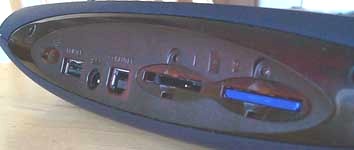
me the most are the extra wide screen, dual SD slots, the variety of power
options, and the USB master port for printing and modems. It would be great to
have some of those features on a palm-sized Palm Powered device, but if you’re
the kind of person to cart around an m500 and a
PPK everywhere, then the Dana
might be an attractive alternative. Even more so, the Dana can be a viable
alternative to an expensive and fragile laptop computer. Sure, you’re not going
to be doing heavy graphic editing, mp3 listening, or networked first-person
shooter games, but a student or an author often benefits from the lack of those
distractions. Then again, it can play Bejeweled. 😉
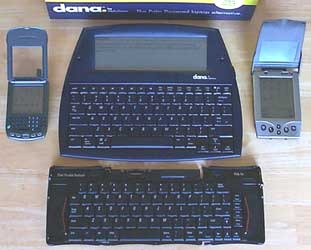 |
Reviews often start off with some size comparison photos. Unfortunately, I don’t have a laptop to compare this to, which would be the most appropriate comparison. But, I do have some PDAs and a PPK to give you an idea of how big it is relative to something you may already know. The photograph to the left compares the Dana to a PPK, a Treo, and a Handera 330. As you can see, the Dana is not much bigger than an unfolded PPK and a PDA. If you find yourself always carting your PPK with your Palm Powered device, unfolding it and hooking it up to do most of your work, then the Dana might be your next best friend. The overall weight and feel of the unit is very nice. It’s very light. |
|
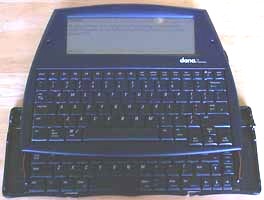
The photo on the right |
 |
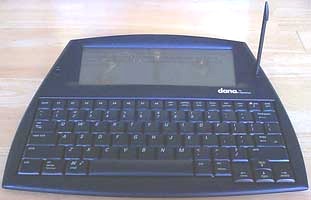 |
One of the great things about the Dana is that it was designed with EVERYONE in mind. That is to say, it’s not right-handed centric. As you can see in the photo on the left, there is a stylus holder on the right side of the screen. There is an identical one on the left side. On the screen, when an application has not been enhanced for the full screen, there is a graffiti input area on one side, and the Dana logo on the other with the application shown in the center. With a single tap of the stylus, that input area can move to the other side, making it easy for left or right handed users to pick up the stylus and work with the Dana when screen input is necessary. Too bad there’s not a stylus silo on the left, too. The stylus silo for storage is on the right side. Oh well. 😉 |
|
As mentioned in the specs section, Dana offers quite a |
 |
On durability, the Dana is actually pretty flexible and creaky. It won’t pass
Julie’s creak test, but I’m pretty sure that’s by design. Knowing the kind of
torture grade school and high school students put school property through,
AlphaSmart designed their tools to withstand as much as it can. AlphaSmart reps
take a special pleasure in telling people about how durable the Dana is, and
promptly dropping it straight down to the floor from a perilous height of 4 or
more feet. With a loud bang the Dana bounces around on the floor, and the rep
snags it and shows how there is no damage and the unit still functions properly.
At worst, a key cap will pop off, which can be quickly and easily popped back
on. The Dana will be receiving a very slight shell design change to keep that
key from popping off. In other words, it’s super durable. Don’t try this with
your other PDA, and certainly not your laptop!
AlphaSmart also thought through power supply options. It can be powered
externally by either the USB (HotSync) port, or by the included AC adapter. It
can be independently powered by the included NiMH rechargeable battery pack
that’s pre-installed, and takes a mere 2 hours for it’s initial charge, lasting
for a good 25 hours of use. One caveat is that the Dana battery lasts longest
when it is discharged before recharging. As such, it’s best to leave it off of
AC or USB power until the low battery warning appears. That can be a pretty long
time, especially if you HotSync often, since it will get a trickle of power
during that short connection time. If you’re out and about and the battery dies,
you can unscrew the battery panel, remove the battery, install three alkaline AA
cells, and detach the battery lead (to prevent data loss during the change to
alkalines), attach the battery panel and you’re good to go. For cost conscious
educational institutions, every bit of savings helps, so the choice of a NiMH
battery and a "dumb" charging circuit was for the best. While the Dana is
connected to external power, a small green LED lights up behind a little clouded
plastic eye, glowing quite nicely. This indicates that the Dana is charging.
During a HotSync operation, this green LED flashes. All the normal system and
HotSync sounds are present, just like any other Palm Powered device.
OK, so lets turn this thing on! After running through the intro and
digitizing the extra wide screen, we start off with the Preferences screen. Same
old stuff in here with one small difference. The Dana’s "Auto-off After" choices
range from 30 seconds all the way up to 10 full minutes. Exiting to the launcher
by pressing the aptly named "apps" key, also indicated by a little house icon,
and whose alternate function is the shortcut stroke, we see that for some
reason, the launcher has not been enhanced for the wide screen. That’s quite
alright, since it’s simple to type a letter to skip to the first app starting
with that letter, or use the cursor keys to move a selection box around between
all the apps. Pressing the Enter/OK key launches the selected application. The
core-4 apps (Address, Datebook, ToDo, and Memo Pad) have all been enhanced for
the wide screen, making lengthy descriptions for tasks and appointments not only
less problematic, but truly pleasurable.
Speaking of the screen, let’s talk a little more about viewability. It has
the contrast and clarity of a Palm Vx or Handera 330 (on the color and contrast,
not the resolution). The DPI is pretty much the same as most Palms with 160×160
screens, so it has similar readability. The back light is decidedly green as
opposed to the blueish back light on the Handera 330, but it’s an "old school"
back light that does not reverse the screen, and is effective in all low-light
conditions. As with all back lights, using it a lot will reduce the battery life
of the unit, but with such a long battery life, you’d have to be working all
night long for there to be a problem.
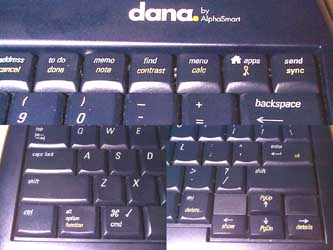
The Dana’s keyboard has the standard keyboard layout as previously described,
but also adds a top row of keys including the following: on/off, F1 through F8,
date/new, address/cancel, todo/done, memo/note, find/contrast, menu/calc,
apps/shortcut, and send/sync. The second function of each of those keys, as well
as several others on the keyboard, are accessed with a special
alt/option/function key in the lower left of the keyboard. These keys, along
with the others, make it possible to do MOST work and screen input from the
keyboard itself. I didn’t find out until later that they’ve enhanced the
keyboard input functions even more by allowing you to move through the on-screen
buttons and other input by holding the function key down while using tab to
cycle through on-screen buttons, enter to choose them, and up/down to move
selections in a popup list. Lo and behold, there’s even a Keyboard application
that reveals even more control over and with the keyboard, including the ability
to assign apps to be launched when holding the function key while pressing any
of the 8 F keys, full keyboard support help, choosing which keys will power on
the Dana, and even selecting between 4 built-in keyboard layouts (QWERTY,
Dvorak, Left handed, and Right handed)!
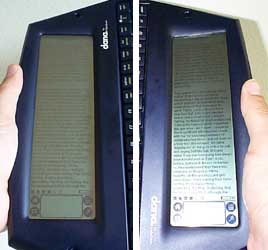 Another
nifty little application called "Screen" allows the screen to be rotated 90
degrees either direction. For reading, this allows the Dana to display a
columnar view of text, much like a newspaper column, with the graffiti area at
the bottom of the column. Of course, this only works with enhanced applications.
Fortunately, Palm Reader is one of those applications, which is included on the
CD-ROM. In the photo to the right, I’m showing off both 90 degree rotations.
"The Adventures of Tom Sawyer" is included on the CD-ROM and is what is shown in
this photo.
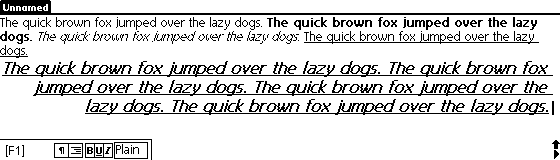
For your word processing, note taking, and authoring needs, there is a
special Dana version of Wordsmith called AlphaWord which supports the AlphaSmart
standard of 8 F keys which provide instant access to 8 separate documents. In
fine Wordsmith tradition, Fonts are supported with Font Bucket technology. Font
Bucket is also supported in the other core applications. Instead of having only
the built in Palm OS system fonts to choose from in those applications, they can
now use any font you’ve installed. Another feature added to AlphaWord is the
ability for the document to be sent to a host computer with one press of the
"send" key. This can happen via IR or USB, and makes for quick document sharing
with almost any computer. The standard features of Wordsmith are still present,
such as thesaurus, spell check, find/replace, and document formatting.
While AlphaWord is really good, some users will be happy to know that
Quickoffice Premier supports the Dana’s wide screen, thus allowing native MS
Office file format support. With a Bluetooth SD card and Bluetooth cellular
phone, Quickoffice Premier, and SnapperMail, the Dana can be a real road
warrior’s mobile office.
The USB ports on the Dana already support HotSyncing (via the USB slave
port), and printing to a compatible USB printer (via the USB master port). Dana
includes Print Boy Anywhere printer drivers to facilitate printing from a wide
variety of incuded applications. With both USB and IR printing options, it’s
likely that you’ll be able to find a supported printer in just about any office
or educational setting to get those words onto paper for the old-skool people to
read.
As with all PDAs these days, there were some additional free and trial
applications bundled on the CD-ROM, most of which have been enhanced for Dana’s
wide screen:
- Corsoft Aileron (e-mail client)
- Printboy Anywhere (not wide screen, but
doesn’t need to be) - Quickoffice
- PowerOne Graph (graphing calculator)
- Thought Manager (project planning)
- Palm Reader
- PiCoMap (concept mapping)
- Sketchy (drawing and animation)
- AlphaBeam (Windows IR receiver app for
AlphaWord data)
While there are a few more apps enhanced for the wide screen than I’ve
mentioned so far, they are few and far between. Hopefully the Dana will continue
to gain popularity among older students and mobile authors, and other users and
call for more of their favorite applications to be enhanced for the Dana. It’s
truly a pleasure to be able to write and work with such a large screen connected
to such a wonderful keyboard.
Price: $399.99
Pros:
VERY sturdy and durable
Quiet, full sized keyboard with enhancements for screen input
Dual SD/MMC slots
Wide screen
Long lasting battery
Left or Right handed
Smaller and lighter than a laptop
Cons:
Not many apps enhanced for wide screen… yet!
Grayscale screen (though not necessarily a con)
Too large to use as a PDA (but then, it’s not meant to be a PDA, is it? 😉
Auto Amazon Links: No products found.
Product Information
| Price: | 399.99 |
| Manufacturer: | AlphaSmart |
| Pros: |
|
| Cons: |
|
