
Just to give a quick overview of myself, my name is Aaron Geller and I am high school student in Toledo, Ohio, which is in the USA. Around 9 months ago, I came across the website www.convergentech.com which featured the EZPAD for about $800. I was swaying in-between the DoCoMo Sigmarion III and the
Moreio EZPAD. The EZPAD cost $300 more than the Sigmarion’s $600 price tag. Unfortunately it was in Japanese and went up to $900, the same as the EZPAD. So a few weeks ago I cashed in my money and bought the Moreio EZPAD.
Hardware Specs:
Model: EZPAD
OS: CE .Net 4.1
CPU: StrongARM SA-1110 -206MHz (233MIPS)
Companion Chip: Intel SA-1111
Display: 8.4” TFT, 65k colors, SVGA, Landscape and Portrait mode available, touch display
Memory: 64mb RAM and 16 MB Code ROM with 32MB Data Flash
Expansion: USB Host x 1 (Type A), Slave x 1 (for PC Sync.), CRT Out, Type II PC Card Slot, RS-232 Port, Baud Rate up to 115.2k BPS, IrDA.
Audio: Microphone (Stereo Phone Jack x 1), Speaker (Built-in Type, Mono, 1Watts x 1), Audio Out (Stereo, Phone Jack x 1)
Battery: Li-polymer Pack with 4hr-battery life (under worst conditions)
Dimensions: 9.0 (L) x 6.0 (W) x .67 (H) (230 mm x 154 mm x 17 mm)
Weight: 1.65 pounds (750g)
Buttons: four User Definable Function Keys and 1 Power/LED button


These photos give somewhat of an idea of how big or rather small this machine is. It weighs as much as big can of beans (at least in America). I will keep the discussion on its size brief. The display is 8.4” diagonal compared to the standard Pocket PC screen size of 3.5” to 3.8”. The EZPAD also boasts an SVGA screen that is larger than the Toshiba e805 4” VGA screen. The upper right picture illustrates its size compared to my WLAN card.
Software:
Desktop
: Starting screen for Windows CE .Net

Microsoft WordPad
: a simplified version of MS Word that lacks tables and other complicated features. WP has basic capabilities such as find, replace, outlining, printing support (via USB), insert symbol, basic formatting, and zooming.

Pocket Internet Explorer 5.5: This is the equivalent to IE 5.5 on your desktop PC. It has basic setup options such as basic security, setting the home page, adjusting the connection, displaying images and sounds, and clearing the cache. One basic feature absent from the PPC but included with CE .Net 4.x is that PIE has a progress bar that shows how much of the web page has loaded. I remember staring at my little iPAQ 5550 screen wondering and saying in my mind “Are we there yet?”

Command Prompt (DOS)
: This by far is one of the oldest Operating Systems still in use. I do not use this program a lot, but there is a ton of promise and hope for developers by including this program. It does most of what DOS does on your desktop except when I type “EDIT”; it does not seem to recognize that command.

Inbox
: This is the equivalent of Inbox in MS Outlook. I have not used this program with the EZPAD, but the PPC version was very pleasing for my taste. For those of you who do not know what this does, I will give a brief overview. If you own a site or know your e-mail provider’s server, then you can have your e-mail downloaded to your device. There are three basic ways; wirelessly, ActiveSync, and by use of wired modem.

My Computer
: This is the CE .Net file explorer. My Computer has all the basics you would most likely expect from a file explorer. You have three different types of views that are large icons, small icons, and list view, which shows the file details. The file explorer lets you access network shares and search for files on your device. This is similar to the file explorer included with Windows Mobile.

Solitaire: This is a self-explanatory game. Just a quick little note, Solitaire has been on every Windows version ever made and Windows CE would not be complete without it. The bottom
right screen shot is one of solitaire you do not see very often. If you press Ctrl and hold Shift and while doing that start a new game, it will set it in a way that aligns every card. By doing this, you can cheat Solitaire and beat it in 2min or less.


Settings Panel
: Nothing too special here. This is where you tweak your device and configure options and other boring “things”. There is one nice thing to this little menu, you can personalize your device. Just like every version of Windows, you can change colors of all types of items and even the desktop image. I’d give Microsoft two thumbs up for finally integrating this little application into the device without need for 3rd party companies.

Remote Desktop (RDP):
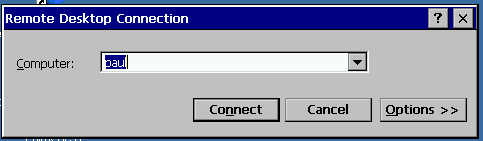
This perhaps is one of the most important applications that a true titan of the electronic mobility would use. What this little gem does is let you log onto your Windows XP computer at home and remotely access it. My high school has an 802.11b connection and a central server. When I go there every day, I am able to plug in my WiFi card and access the Internet as well as my computer account. In order to best describe this, let us just say it is a smart display; it behaves like a wireless monitor. I am going to include only one screen shot because it looks just like your computer screen.
Run
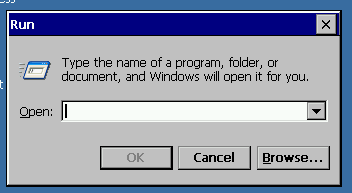
: This another basic program. You type in the name and it executes it. This program is self-explanatory so I’m not going to discuss this.
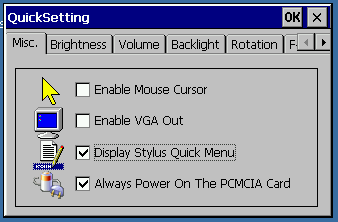
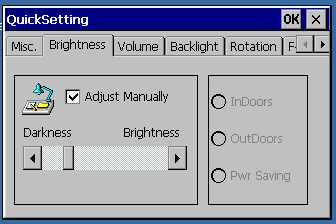
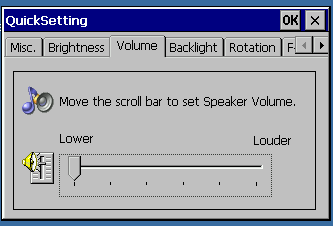
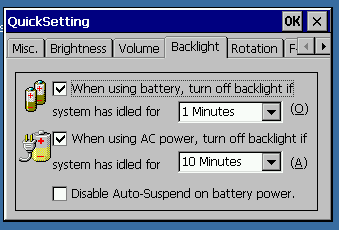
Quick Setting
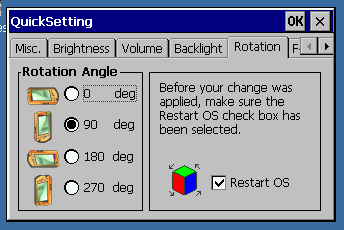
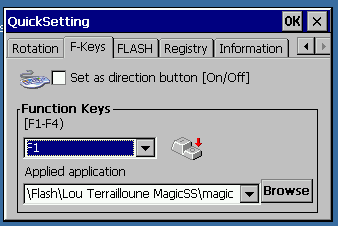
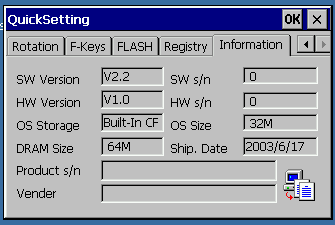
: This is another setting panel type application. You can modify the settings on your EZPAD. The photos should explain most of the program.
Free Cell
: I have never used this so I cannot really comment on this. The only thing that I do know about this, is that it is another solitare card game. If you look in the help section, you will probably be able to find instructions on how to play Free Cell.

Infrared Transfer
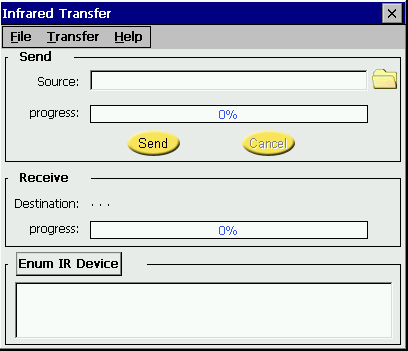
: I do not use this either, but I believe it is for synchronizing via IR and transferring files.
Keyboard
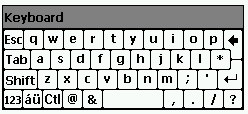
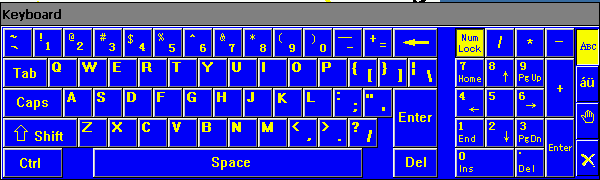
: There are four ways to input text. You can use transcriber, USB keyboard, a small soft keyboard, and a large software keyboard. Most USB keyboards should work with this along with a USB mouse. I am sure that there is an input option that will suit your needs.
Pocket Paint
: This does not come with the EZPAD but you can download it from MS free. PP is like “Paint” for the desktop. You can do very basic painting and you can use 16 different colors. PP does have a lot in common with “Paint”, so you can do decent drawing. None the less, do not expect to make pictures equal to that of Adobe Photoshop. When you look at the screen shot down below, you will see some of your options and no, that is not the Internet. That is a photo of the internet and yes there is a difference.

So now, we have just finished the software section. Let’s move onto some of the unique features of this incredible device.
USB
: A few months ago when I came upon this device, I noticed that the technical specs mentioned USB host. I saw many great opportunities and USB concerning expansion. The support for USB is quite good considering my needs. I am able to use a stick drive, flash card drives, keyboards, printer, and mouse. I am sure you can do more, but I have not attempted to do so yet. There is only one USB host port so you will need a hub, which will set you back around $15-$30. When you attach a mouse and a keyboard, you will have then created a full computer without full software compatibility. If you have a wireless network at home, you can use RDP and then it will really function as a full desktop. The only downside is that it can be a little slow at times due to the 206mhz CPU. Overall, it functions well as a desktop and there are more pluses associated with it than minuses.
Printing has to be one of the best features of this device. I have run across this a lot in the Pocket PC arena. This is the scenario: I am entering class and I just now remember that I have to turn in my paper today. Fortunately, I have the document saved on my handheld and now I am going to print it off my iPAQ. This is where my heart bursts, there is no way for me to print it off. Now, with the EZPAD, I can just run to a printer. Then I plug the USB cable to my device and into the printer. Boom! The document is printed and I still have my high grade for the class. You can print from other apps besides Word and one of these is Internet Explorer.
The use of the USB port for storage is by far one of the best means to do so. You can get a USB hard drive and attach it to the machine or you can just plug in a USB stick and it works just as well. I use a USB stick with it all the time and it works like a charm the entire time. The data write speed is not the fastest, but still respectable for a machine of its kind. I have not been able to use a USB hard drive, but the problem with it, is that you may need a mass storage driver. The drivers should not be too hard to find. Another possibility is getting a USB adapter so that you can plug in you CF or SD storage card.
Battery: The battery is not as good I thought it would be. I have used the iPAQ 3950, 5450, and 5550. The battery life for the iPAQ is around 8hrs or higher. If I use the EZPAD for web surfing, I may run the battery to 0% after about 2.5 hrs, which is not too bad. The battery is rated at 4 hours in the most extreme circumstances which usually mean high brightness and playing music or video non stop. I am not having too many troubles at all with the battery and if I need to, I can go and buy an external battery that gives me double the battery life for $100. In most cases, the battery is fine for the average consumer. When I am at my high school, I only need to charge it a little here and there and everything is all right. To wrap up the battery overview, the battery is just fine for average use.
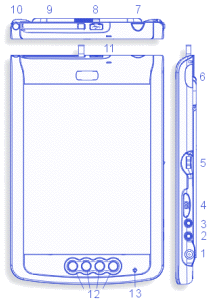
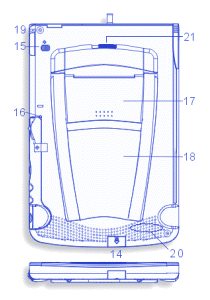
Form Factor: The device is actually small considering its mammoth display. On the right side, from bottom to top, we have the power jack, microphone, headphone jack, VGA out/ USB slave, scroll/ action button, and the IR port. The top contains the PCMCIA slot, eject button, USB Host, LED/ power button. The left side has the styli silo. The front contains four F buttons that can function as programmable buttons or directional buttons. The EZPAD is much smaller than it actually appears to be. The best way I can describe it as a Bible that you find in hotels, but as thin as an iPAQ 2215. You can actually store it in a bookcase, I am storing mine right now in a Bible case, and it is working quite well.
Display: Now this is where the EZPAD really shines. It possesses an 8.4” diagonal screen. The screen is 800 by 600, which is more than adequate for web surfing and other browsing needs. Most PPC users who browse the web tend to want better and better browsing capabilities when they know they just will not get the perfect browsing experience. The brightness of the display is enough for most users. Even in the dimmest light, it still performs. The display is a TFT, so you know it has a fast refresh rate. The TFT does not insure fast video though. The EZPAD is terrible at playing Window Media and AVI files. I was really in shock by that since they had Pocket PCs with 206mhz that ran video just fine. I heard that mpeg4, runs quite smoothly. For every pixel on the PPC display, the EZPAD has about 7-8 pixels. The individual pixels are crisp and able to display 65,000+ a piece. The actual display has a smooth papery feeling, but lacks pinpoint sensitivity. It is accurate, but not as accurate as my old iPAQ 3950. The brightness is about as high as most Pocket PCs. The EZPAD includes a VGA out port. The VGA out port allows you to do Power Point Presentations and output the display to a regular computer monitor. The VGA out cable is included with the device. It makes very good with presentations and saves you the load rather than carrying a heavy laptop. It just will not play video’s with Power Point obviously.
Software Bundle: There is not much of any software included at all. The EZPAD comes with a CD that includes shareware and freeware titles. A good deal of Hand Held PC 2000 programs should work. In addition, Windows Mobile software may work as well, though it is less likely. This is more closely related to an HPC than a Pocket PC. I am not totally sure about this, but I believe that software that runs on the Nexio s160 may also run on the EZPAD. If you have any questions about software compatibility or want me to test drive a program, e-mail me at [email protected]
Conclusion: I believe this is a device for those require some of the most advance mobile computing. If I had a say in the build of the device, I would build a longer stylus although the stylus is more than most people will need. In fact, the stylus is as long as regular pens but not quite the thickness. I would also like to add in a 400mhz CPU and 128mb of RAM to boot. The price is a bit steep as well, but you must take into consideration of the size and functionality of the machine. One minor complaint is that screen is not transreflective. Overall, this device would receive a 9.5 out of 10 if it were to cost only $800 instead of $900.
Pros:
High Resolution Display
8.4” screen
Built in PC Card slot
USB Host
Fairly Decent Price
An almost all in one package
32mb of Flash ROM
Small size
Cons:
Only 64mb of RAM
Larger than a Pocket PC
Only 206mhz

ESR for MagSafe Wallet, 5 Card Holder with RFID Blocking, MagSafe Sticker Included, Slim Magnetic Wallet for iPhone 17e/17/16/15/14/13/12 Series and Selected Samsung Devices, Not for 13/12 Mini, Black
(as of June 8, 2026 18:53 GMT -05:00 - More infoProduct prices and availability are accurate as of the date/time indicated and are subject to change. Any price and availability information displayed on [relevant Amazon Site(s), as applicable] at the time of purchase will apply to the purchase of this product.)
KRTALS Stronger Magnetic RFID Leather Mag-Safe Card Holder for iPhone 16 Series, Mag-Safe Accessories Stick on Series of iPhone 17/16/15/14/13/12 and Pro/Promax, Black
(as of June 8, 2026 16:42 GMT -05:00 - More infoProduct prices and availability are accurate as of the date/time indicated and are subject to change. Any price and availability information displayed on [relevant Amazon Site(s), as applicable] at the time of purchase will apply to the purchase of this product.)Product Information
| Price: | |
| Manufacturer: | Moreio |

Gadgeteer Comment Policy - Please read before commenting
Post your comments here on the Moreio EZPAD CE .NET Device Review.
http://www.the-gadgeteer.com/ezpad-review.html
Just click the POST REPLY button on this page.
I have a question: are the colors on the screen that bland (IE the Windows logo on the start menu) or were the colors cut down due to the gif format used?
No, the colors are not bland at all. It’s a 65k screen and the pixels are pretty tight knit. It’s basically like having a LCD moniter except smaller and crisper pixels.
Just curious as it’s been over a month since the review was written (very good BTW), how do you like the EZPAD now?
Any additional comments about it?
thanks,
Mark
I actually still use the device a lot. The wow factor has worn off as with any device. In situations, I am still able to whip out the EZPAD, type up the assignment, and still hand it in on time. I still use the internet feature since it connects me. I use RDP, AIM, PIE the most which allow me a broad means of communication. I would still recommend it to anyone.
Thanks for your comments ezpad!
Sounds good…maybe I should sell my Toshiba e805 PPC and get one??
Mark
🙂
It depends on what you are going to use it for. Remember, the EZPAD doesn’t have the largest software selection around, but using fake DLLs you can run quite a few pocket pc programs. It all comes down to what you want. The EZPAD has a larger screen, so if you want the real estate, then i’d go for it and if you’re running Win XP Pro, you’re in luck.
Hi ezpad,
Thanks for the extra info.
I do have WinXP Pro on my little Fujitsu 5020d laptop of mine. How does that help??
Thanks,
Mark
The EZPAD has remote desktop which allows you to access a Win XP Pro computer from anywhere. XP Pro allows devices access to itself, much like the system at my school. Remote Desktop is just like PcToGo, except its faster and free. Its just like being at your very own computer. To set it up, you may need a little help, but once its all done….you have a new computer than runs all the programs. It isn’t great for watching movies, but for all other applications, it works rather fine.
I get it now….
Thanks ezpad!
🙂
Mark
A couple of questions about the EzPad:
a) How does the screen perform outdoors or in a vehicle (car, aircraft)?
b) What is the actual screen size? The specs say 8.4 diagonal but what is the height and width?
c) How stiff is the case? Is it something that you need to be careful to flex or is it fairly sturdy?
Thanks,
The is behaves like a transreflective one. It’s quite awesome indoors, but outdoors its not the best. It is still quite viewable and the screen does not go blank, The case quality is quite good and its not flimsy. You can grasp it and not worry about it cracking or whatever else possible. But it will crack if you drop, but you wouldn’t do that :rolleyes:
The screen, i haven’t measured yet. You’d have to use A squared plus B squared equals C squared and its a right angle. I hope you did well in Geometry.
Thanks for the info.
I only know C, making it mathematically impossible to calculate A and B.
Using a picture from the internet and linear extrapolation I’ve come up with 6.75×5. Wouldn’t mind a verification if you get a chance.
I will try to get a measurement soon by the end of the weekend
Hi, I was browsing the web for a large-screen pda, for a business I am doing consulting for. I wandered the web and then decided to check if the-gadgeteer had any review on such a device (lo and behold!). Good review, it seems to be that this is a much better device than those Smart Displays (that I see predominantly on Ebay made by Viewsonic under the Airpanel brandname). Although I’ve looked around as much as possible, it seems like you can not use the Smart Displays as a standalone device (if I’m wrong someone please correct me, although I’ve read in one review from cnet asia that it is not a standalone).
Anyhow..I had two questions and then one comment.
Q1. The very first picture which shows a blueprint sketch, there’s a top section that’s detached from the main device. Is that an addon section or actually part of the main device? What is it? heh
Q2. For business purposes, we want the device to last a bit longer on the battery side (12 hrs would really be nice…). You mentioned that a $100 battery to double the life was out there. Do you have a website url to whomever makes that battery?..or is it from Convergent Technologies?
C. I wandered some more and found another link to a very similarly looking (if not exact) device, for anyone that’s interested:
http://unitedpage.hypermart.net/3cmpc/page5.html
They have it priced at $549+$18.90 s&h……
Smart displays are basically a normal monitor that you can detach from the base station, and take anywhere in your house. Basically a tablet PC, but as you said it can’t be used standalone, it is connected by WiFi to the desktop PC. Microsoft has given up on this, they cancelled all Smart Displays (ie don’t buy one).
Frankly, I don’t see why anyone would want one of these over the VGA Pocket PC’s starting to appear, one is out already by Toshiba and one is coming by HP, ASUS, and a few other companies. They are more powerful, have more software, and have a more polished OS than WinCE tablets like this device.
By “one of these”, I assume you mean the Moreio EZPAD..
the reason I have been looking for something like this is
because of its larger dimensions. This is for a group of doctors with multiple locations – who want something of a portable nature (light in weight, semi battery lasting), a decent size screen (they do not want to use “small” pda screens on the 3.x inch to 4 inch range..hence my search. We don’t need it to display full motion video or anything fancy graphically, but it needs to have a larger screen than what current pda’s have. The reason we weren’t considering tablet pc’s was partly the price factor and partly a concern that if it got dropped….which undoubtedly would happen. If you dropped one of these, at least it would be at a
smaller cost. 😉
Anyhow, I kind of like the idea of a larger pda, especially
for reading .lit .pdf files in a portable manner. I have a dell axim that is great for reading the .lit files, but I tried some of those pdf files and they don’t show up on the screen that well (imo) just
because of the lack of screen space. I just wish more companies would sell something similar to this Moreio brand.
WinCE tablets (such as the Moreio) are all but abandoned. Microsoft seems to think Tablet PC’s will replace them, so they are discouraging companies from making them. If you think the Moreio would be good for your purposes, by all means go for it. Don’t let me stop you. But, I am just saying you can get a much more powerful Pocket PC device for a lot less cash.
Ok, for Q2, I have not had much problem with the battery life. I can use the device all day and only have to recharge it in the evening. This assumes, of course, that you are not using it every minute and that you hit the off button when you’re not busy with it. It lasts about 4-5 hours for me if I use it full out, a little less if I have the network card in it.
The Extended battery can be had from ConvergenTech. I can’t vouch for it, since $150 is a little much for my purposes.
The device at 3cmpc is the one I bought, I had a stunning user experience with them, I ordered the Pad, and I had it within a week. (Ordered on Tuesday, got it the next monday morning). Their price has gone up to $599 since they now include 128MB of internal flash storage instead of the original 32? I think, but that price includes the wireless PCMCIA card. To get the card to work properly I had to download and install the wireless drivers from ConvergenTech.
(And the reason I bought it over a PocketPC device is because I mainly use it to read e-Books, and I required the larger screen)
I’ve had mine for just over 2 weeks, and I love it.
Just to finish up on this device after using it quite extensively the
last few weeks..
1) We got ours from 3cezpc in about a week as well shipped from Taiwan.
It came with the wireless card as well. I checked our device, it has 64Mb
of internal flash storage.
2) We’ve gotten the device to go as long as 9-10 hours with the
extended battery (which we purchased from convergent technology).
This is without using the wireless card, or any other peripherals.
With the extended battery, it is a bit heavier to carry one-handed, but
still not as heavy as a tablet pc. Heck the battery lasts so long, I
can finish an ebook in one sitting. The only glitch is sometimes when
you first turn it on, it will turn off in a few seconds, but after you turn
it on again, it stays on (assuming you continue using it). No idea what
causes the glitch, even with fiddling with the powersaving options,
but not really a big deal. The device itself does get warm after
prolonged use, but not as hot as a tablet pc can get. One annoying
thing is there is a popup message box that will show up, all too
frequently, as the battery (or extended) hits 50% or so. It continues
to popup as it goes to 0%. I haven’t bother to figure out if there is
a way to turn it off. Also, one time we let it go all the way to 0%,
on both batteries, the device lost everything that was installed or
changed and reverted to the original image.
3) It really is a superb device for reading e-books, with its screen size.
We tried a few others that had 8.4″ or 10″ lcd screens, but the ezpad
felt the most natural and comfortable device to use. It was rather surprising to me that by default you can not install acrobat reader, or ms reader, or for that matter, many other reader programs we tried out there online. You have to do some nontrivial things to get some of them to work.
4) We did get our CE.NET and SQL CE programs that we wrote to work
on the device, which was really our main goal.
Am interested in this device as well, especially for:
– picture viewer with hard disk attached to USB
– GPS while off-roading
– DVD and MP3 player
Can anyone comment if this device will be a good choice?
Have tried to get in touch with the company that sells the 3C EZ PC, but they are VERY slow responding. MAde me a little worried doing business with them. How good are they?
I wouldn’t count on DVD viewing too much, as the Moreio has a fairly slow processor. It wouldn’t be terrible, but there are better devices for watching DVD’s.
Thanks, Tyler. Don’t expect much, but it’s handy occasionally!
Hi,
It looks like these guys offer something similar:http://www.mobinote.net/na/product_mobinote_eng.asp. Are them the producers!?
I ordered one from 3cmpc too few days ago. Let’s hope I’ll get it 🙂
Just another update. The device runs great still, still has the same
minor glitch, but not a huge deal. I doubt it would play a dvd/mp3 very
well, although we never tried to, nor did we try its audio
capabilities. USB storage keys work fine with the ezpad, we
use it to transfer files back and forth. We tend to use up the
extended battery when we use it, but rarely get to using the primary
before we start recharging the batteries.
I will say two things that we ran across since the last time I posted:
1) No writing pad program was included in our ezpad. What I’m talking
about is something like OneNote for Tablet PCs or like most Pocket PCs
where you can scribble a simple note and save. What we got was only
Wordpad (look at comment #2 regarding Pocket Word/Excel) and if
you tried writing onto it, it would attempt to translate your writing
into typed letters. So no drawing, notta. What we ended up doing,
for a client, was writing our own scribble-note-taking program and
adding it to the device.
2) Although the 3C EZ website lists under their applications that
it has Pocket Word and Pocket Excel, it does not. We informed them
via email about this and they did apologize (although their communication
was somewhat slow/spotty). Apparently, they haven’t removed that
off their website like they said they would in their email back to us.
Their Clearvue programs all you to view word or excel or powerpoint
files but do not allow you to edit them. However, you can add Pocket
Word/Excel yourself..
I noticed the 3C EZ website has a newer device called the MidasPad..
Also the device is now $649? I thought it’s supposed to go down
in price, not up 😉
Hi Everyone,
I have ezpad and i am using this from 2 months… last time i found some bugs in his opreating system. For this reason i want to update its OS Image file…
i download this file from his website…. Moreio EZPAD Dowload Center.. but it give me checksum error during instalation….
After that my ezpad screen become off….. in basic mode it is working but in window mode it become dark ….now i need help
Have Anyone Professional Who except this chealange ?
take care
I’ve owned an EZ-Pad for something like a year, and all it does is collect dust! I’ve tried hard to find some useful role that it could play in my work / personal life, but I simply can’t figure out a single thing it can be used for. I have three laptops, so I’m not interested in a keyboard-less portable web browser / document editing platform. The reason I bought it was that I was hoping to use it as a digital notepad (i.e., something with lines that I could just write on — no handwriting recognition, just write text, store text (in a portable format), read text so entered), but there is no application that comes with it that does anything along these lines.
What do other people use theirs for? Can it run Linux (or another free operating system)? Is it good for anything other than being a USD800 image viewer (and not a very apt one at that)?
I bet there’s a free application that you can use to just write. If anything, you could use Pocket Paint that was mentioned in the review.
I don’t think they can run Linux, but it might be possible.
Hi all!!!
I’m really interested in buying one of this machines, there are not many of this type around…too bad.
I have two questions:
1-Did anyone try to install tomeraider, the pocket pc version (with the fake dll’s or something), to be able to have the whole wikipedia in this beauty??? 😎 I would appreciate if someone tries out……anyway…it worths it!! (if you need info, where to find the tomeraider wikipedia file, ask me)
2-Is it not sold anymore? I didn’t find retailers of this machine as of june 2007.Will I have to search for a used one?
Thanks
I regret buying this advice… i just turned 21 and it wasn’t worth it. The iPod Touch is way better