
Product Requirements:
Device:
Palm i705, m515, m505, m500, m130 and m125 handhelds
Setting up a Personal Area Network (PAN) has never been easier with the new
Palm Bluetooth SDIO Expansion Card. I have
tested this product with my Sony/Ericsson T68i mobile phone and an HP DeskJet 999c printer.
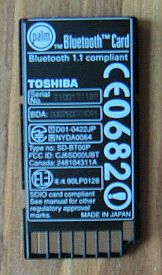
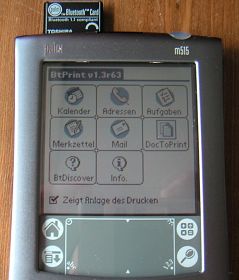
The card itself is tiny but sticks out of the PDA’s SD slot just a bit. It slides in
flawlessly like all other SD/MMC cards, but like with those you have to be
careful not pull the card out but push it first slightly. Then it comes out by
itself. I have read in a review that the disadvantage of the Bluetooth card that
it occupies the slot that can not be used when the Bluetooth card is in it.
Well, I rather prefer the smallness of the card to having a free SD-card slot
that I simply do not need when I use Bluetooth.
The set up is really easy. Before you plug in the card you have to install
the software on your computer. Once you hot sync your Palm with the desktop the
following programs will be installed:
– Blue Board (send little graphics to other Palms with Bluetooth)
– Blue Chat (chat with other Palms with Bluetooth owners)
– Bluetooth (set up program)
– BT Print 995c (full version)
The Bluetooth connection will appear in your Preferences where you can turn it
on/off, enter the device name and add other Bluetooth devices with which you
want your Palm to communicate with. This is rather easy as well. I tested it first
with my T68i – by the way, the best phone available right now, at least here in
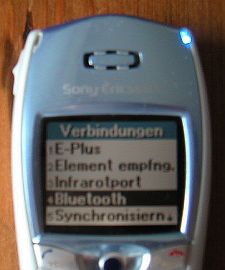
Germany. You have to make sure that your phone is set up so that the Palm
Bluetooth card will be able to recognize it. Once it shows up on your Palm you
are asked to type in a PIN code (you can choose whichever number you like) and
give the device a name, e.g. "Gadget Phone". Now you have to go to the
Preferences menu and add the connection. This is easy too, because all you have
to do is too choose the following:
– Connect to PC
– Connect via Bluetooth
– Device: the name you gave your phone
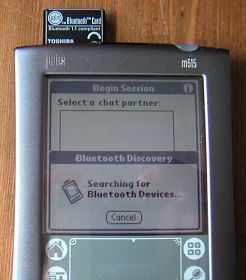
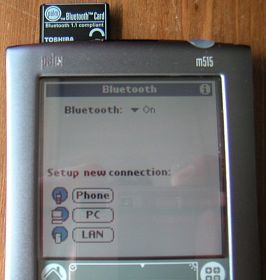
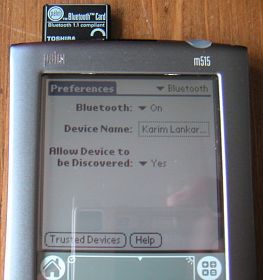
If you want to connect to the Internet or send an SMS you have to type in some
additional information in the network section of course (your ISP, password and
phone number), but that is it. I use Blazer, the Handspring’s web browser for
Palm OS. All I have to do is to click on a bookmark or type in a new URL. Then
Blazer asks me if I want to connect to the Internet. I say yes, and in a few
seconds I am connect to the WWW with up to 57.6 kbs, thanks to HSCSD, a fast and
much cheaper service than GPRS, that is offered here in Germany by two large
providers.
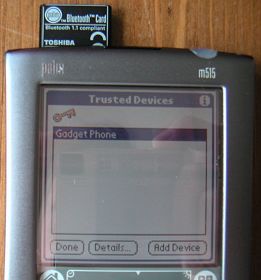
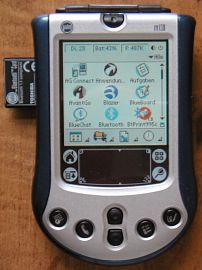
Palm’s SMS program connects to the phone via Bluetooth as well, like the Multi
Mail program and the WAP browser. Unfortunately, if you are an AOL user like I
am, it is not time to say good-bye to your infrared port yet because the AOL
E-Mail-Client does not support Bluetooth yet. So not everything is perfect in
Palm’s Bluetooth wonderland yet, and there are a few minor annoyances one has to
cope with. As mentioned before the Palm Bluetooth card fits well into the SD
card slot but sticks out a bit. This is a bigger problem when you want to use it
in the M130, because its SD card slot is on the left side and you will not be
able to close a carrying case for example, but even as a M515 user I wish it
slide into the slot completely because I am always afraid it might break if I
throw it into my backpack (well, not that I really throw my Palm, but still). So
I always take it out if I do not use Bluetooth. This is especially annoying when
I travel and just want to send a SMS and always have to take out one card to put
in the Bluetooth card. But I guess right now the sensors are not strong enough
so they have to stick out a bit because otherwise the range would be shorter.
Well, talking about range I have to say that my experience so far has been that
the range is in fact shorter than the 30 feet Palm and other makers of Bluetooth
devices claim. From my experience the range of the Bluetooth connection is
stable up to 25 feet.
Of course I was curious to test as many Bluetooth devices as possible and
because I did not have a printer I went shopping on eBay and found the HP
DeskJet 995c at such a good price I could not resist, knowing of course that I
do not really need a printer. Anyway, a few days later I got the printer and
while I plugged in the power cable I wondered how difficult it would be to get
the Bluetooth connection up and running. Thankfully, the previous owner had
already set up the printer, so I did not need a computer. Honestly it was so
easy to print from the Palm I could not believe it. When you install the Palm
Bluetooth software you install a little program called Bt Print (it is the fully
version) that allows you not just to print from the normal Palm applications
like address book, date book, memo pad but also Excel, Word and PowerPoint
documents, if you use Documents to Go.
First you have to allow your Palm to communicate with the printer. You need to
turn on the printer and wait until the blue light flashes – did I tell you that
I love those cute little blue lights and wish the Palm Bluetooth card had a
light as well so one knows when a Bluetooth connection is working. In the Bt
Print program you click BT Discover and after a few seconds the Palm finds the
printer. You click on choose and you are set. Yes, it is really that easy. First
I wanted to print a word document. To get a list of all documents on your Palm
that are available to print, you click on Docs to Print. You choose the one you
want to print and there you go. Your data is flying to the printer and the
document is printed and looks exactly like it should look like.
I have to admit I had to try it a few times to believe what was happening there.
Using an infrared connection you need to at least hold the devices close to each
other so the data gets transported from one device to the other, but the whole
idea that the data somehow flies through the room to the printer and gets
printed in a way that you get read it is somehow weird I think. Yes, I have used
Wireless LAN before, but doing all this with your tiny Palm is really cool.
Unfortunately you can not print everything you have on your Palm. For example it
is not possible to print pictures from an application like Photo Suite, but I
hope this is just a matter of time.
Well, despite all my positive experiences I have to say that it is not perfect
yet. I still try to find out how to hot sync via Bluetooth, which should work
but nobody knows how. I was not able to try the Blue Board and Blue Chat
programs. I love to send funny remarks to a colleague in a meeting, but being
the first to try things out can sometimes be a lonesome experience. No Palm
owner I know has a Bluetooth card or intends to buy one soon, because it is
rather expensive and they do not know what to do with it (well, they are not a
Gadgeteer, are they?). Otherwise I think this card is a must have, it is tiny,
easy to set up and works well.
Price: $129.00
Pros:
Easy to setup
Small size
Works well
Cons:
Haven’t learned to Hotsync via Bluetooth yet
Isn’t compatible with AOL mail
Not many Bluetooth devices available yet to use with this product
Auto Amazon Links: No products found.
Product Information
| Price: | 129.0 |
| Manufacturer: | Palm |
| Pros: |
|
| Cons: |
|

Gadgeteer Comment Policy - Please read before commenting
Post your comments here on the Sony CLIÉ PEG-UX50/U.
http://www.the-gadgeteer.com/sony-ux50-pda-review.html
Just click the POST REPLY button on this page.
Judie, never having owned a CLIE, I’m probably not the best one to be telling you about this, but I’m pretty sure there are a couple of apps that you should check out. ClieSource is abuzz about some app that lets you use a ton of apps in landscape mode, such as Docs To Go. There’s also an app that was really popular with the TG50 that let you navigate and select on-screen buttons using the thumbboard so that you could drastically reduce the need to use the stylus. I can’t remember the name of that on either, but a quick check on ClieSource should reveal it.
Interestingly enough, this device never really appealed that much to me when the news of it first came out, primarily because of the lack of portrait-support and the small size of the screen. But the picture comparing it to the Tungsten T makes me reconsider my position. I really like the small size. Still, a portrait-friendly version with a larger screen (since they’ve got border space to spare) would be perfect. The other reason why I wouldn’t consider this right now is simply price. It’s just so expensive compared to a lot of other PDAs coming out lately that offer a lot of bang for the buck.
Scott
Scott,
I tried not to mention too much about software that you can buy/add to enhance performance or looks because these are features that I felt should have come out of the box on a $700 PDA.
This CLIE feels unfinished, even though it is an excellent first step in the right direction. It just isn’t quite there for the price being charged.
In another couple of months, when the price comes down, that would be the time to spring for one if you think it would work for you. Of course, with the way Sony introduces new models, I wouldn’t be surprised if in 6 months one comes out that does everything I want and then some for $100 less. I’ll be buying and keeping that model. 😉
Judie :0)
Judie,
Great review!
I too was a bit disappointed by the overall “feel” of the UX, but it is still a slick concept. I agree that if I just wait a couple months, I’ll either be able to get one cheaper or I’ll be looking at a newer Sony model. For now, I’m sticking with my NX70V.
The lack of a Portrait mode is disappointing as is the location of the Jog Wheel. To me, one-handed operation of a PDA is a must.
Concerning Decuma, the “Shortcut” feature is similar to Graffiti’s Shortcuts but with a twist: Graffiti (1, anyway) requires you to enter the Shortcut stroke and then the defined letter or number stroke to invoke the shortcut. Decuma lets you define ANY stroke as a shortcut. For example, I scribbled in my (cursive) initials, and associated it with my full name. Now, when I “initial” the screen, Decuma converts it into my full name. A subtle, but interesting difference.
Also concerning Decuma, I can’t believe their implementation. Yes, I understand that making it work in the vertical Virtual Graffiti (VG) area might be difficult, but to have it take up screen real estate is bad. I just LOVE the Decuma Silk Plug-in for my NX70V.
Oh, and related to the VG, here’s one very disappointing thing I found out about the UX: I contacted “Chime”, the WonderSilk app developer, and he said that there are no plans for a version of WonderSilk for the UX series because the UX series “…doesn’t support Silk Plug-ins…” This is a major bummer, because I had grand hopes and ideas for converting a number of my WonderSilk Skins to the UX’s vertical format. Oh well…
I like how you went into great detail about the screen and keyboard etc..
im still waiting for my UX to get here and this review killed some time while i am waiting.
Just like the other guy said I recomend Codediver. it allows almost any program to be changed to wide res or hires +
i tired it out on the Palm os landscape simulator and it seems to work great.
Keep up the great work!!:D
Here is a neat way to backup your clie… go to preferences and choose power saving and click turn off. This will back up your clie to the NAND storage on the clie (on a side note… this is probably the only Palm OS machine that you can really turn off…)
Then turn the clie back on and use it normally.
If you want to get the backup restored simply do a hard reset and it will ask you if you want to restore your backup….
Geoff
Message written on UX50 w/Netfront connectiing via bluetooth to a Sony Ericsson T610 Cell phone over GPRS!
Geoff,
That is a great tip – I am sure it will come in handy for someone.
Judie :0)
I found the UX50 to be a major disappointment.
Nice review and it’s nice to see how you continue to take a lot of pictures as well.
The only thing I don’t like about this clie and others is the fact that the Sony Stick hangs out close to an 1\8 or less. But it’s really not the body of the clies but the sticks themselves. Finally I decided to shave the amount of access ON THE STICK that sticks out and now it’s flush to the UX body.
No more poping sticks for me when I use this UX. If you consider shaving the top off make sure you use tape and stick it right after the K in the word stick. If you go past the K the plastic will show a split which than you will have to add a little bit of crazy glue to keep the plastic from comming apart..
Also, after the letter K you will hit the memory board, you won’t mess anything up it just sounds scary but it’s not. BTW, the tape is your stopping point when you shave the stick. After the sand down you will still be able to push in the stick to remove it but with moreof an effort which is great since it will now NOT pop out whenever anything leans against it. If you stay right on front of the K you will have a perfect sand down.
Now to shave some off that extended battery to get it slimmer as possible!
Great review, Judie. I recently set out to upgrade my now-aging NR70V, and was initially tempted by the not-yet-available UX’s “cuteness.” But the ultra-high price, poor camera and curious lack of portrait-mode support left me unimpressed. Good thing, too. I discovered the NX80V. A true upgrade to the NR, but improved in EVERY way (except for that god-awful telescoping stylus!). When you combine the NX80V with Virtual Fitaly, you get as close to PDA perfection as current technology can take you.
In typical “Sony Style,” the UX concept won’t reach its full potential for two or so product cycles. THEN, I’ll byte!
i think if youre not a heavy user of wifi and bluetooth you wont find the UX to be worth it.
i think the ux isnt for the casual wifi or bt user.
Try using CodeDriver for the UX:
http://www.jade.dti.ne.jp/~imazeki/palm/cDiv/index-e.html
The app allows you to use most applications in full landscape mode…
gfunk, their complaint was that they wanted to use apps in portrait mode, not that too many apps didn’t make use of the full landscape mode. CodeDiver doesn’t let you use apps in full-screen portrait mode on the UX does it?
Scott
I had exactly the same response after using the UX50 for 1 week.
At its price level, I felt I had a beta product – the screen and need to use two hands for so many things made the decision for me as well.
However I sure did get used to wifi – which is why I will not be upgrading my TT to a T3.
Thanks for the great review.
It kept me from looking futher on the UX.
I really did like the first look of it when I saw it on your website, I really (as many others) thought this would be THE PDA for me.
Strange to find out it isn’t.
I hear more user of Sony PDA’s with a keyboard reverting back to entering data through graffitty instead of using the keyboard.
What could be wrong with those keyboard?
Psion (Symbian) users were used to using keyboard for many, many years, and were very, very happy with it.
Is it the size, the feedback? What?
How would the keyboard of the UX compare to the Tungsten-with-keyboard or with the TREO 270?
Oops! 😮 yup, you’re right about that. Codediver just allows more utilization of the screen in landscape mode, but doesn’t switch to protrait…
Thank God I found this website, great reviews, I was about to buy one, I am so glad that I found this website about UX50, I think I will stick to the one I have right now, and wait for a better one to come out!!!Thank you!!!
Thank you i was going to buy one this week i also have a NZ 90 clie i just want a new unit but not the UX 50
Have you seen all the info about the upcoming CLIE TH55? I am not sure that it would necessarily be your dream PDA, but it does have built-in WiFi and BT with a tablet design. No keyboard (but you can add that), and no landscape (which I have become attached to from using my Tapwave), but it is the next logical step in the CLIE T series…
http://www.bargainpda.com/default.asp?newsID=1843&showComments=true
http://www.palminfocenter.com/view_story.asp?ID=6468