
Product Requirements:
Hardware Requirements: PC Users: Available USB 2.0 or USB 1.1 port or
available Windows-certified IEEE 1394a (FireWire) port, Microsoft Windows XP,
Me, 2000 or 98SE. Mac Users: Available USB 2.0 or USB 1.1 port or available
Windows-certified IEEE 1394a (FireWire) port, Mac OS X, Mac OS 9.x, Mac OS 8
(backup software does not support Mac OS 9.x or Mac OS 8.6)
The BounceBack Express software needs: PC Users: Intel Pentium or compatible
processor, 128 MB RAM, Windows 2000/XP, 15 MB available hard disk space, Mac
Users: G4 Processor or greater, 128 MB RAM, Mac OS X or greater, 15 MB available
hard disk space
When I bought my latest desktop computer, I really messed up by accepting
80GB instead of opting for a much larger C: drive. Honestly,
what was I thinking? A year later, I have seen the limits of such a
diminutive hard drive, and I don’t much like them. These restrictions became
very evident when Steve and I started ripping our CD collection last summer. Because of the
inadequate drive space, I knew that it would only be a matter of time before I
either had to stop converting CDs to digital content or I would have to figure
out a better solution – other than just storing half of our collection on
Steve’s computer!
On top of needing a place for digital media storage, I also needed a way to backup
the data on my computer as well as a place to keep my own set of backups
for the various websites that I manage. Furthermore, I wanted to be able to keep
a safe copy of The
Gadgeteer’s data. I figured that the next best thing to a whole new computer would be an external hard
drive with a huge capacity.
Recently as I was writing the Seagate Technology
5GB Pocket Hard Drive
review, I took the opportunity to peruse their line of
external
drives. I was quite impressed with the fact that there was a 400GB
hard drive available. In fact, when I first read about it, the number just seemed astronomical.
But I should know better than most that one ought never think that
any amount of memory will be impossible to fill. However, I was game to
give it a try!
There are actually two versions of Seagate’s external hard drive available, a USB
only and the USB/FireWire. The USB only version comes in 160 and 250GB
sizes, while the USB/FireWire version is available with 200, 300 and 400GB.
As the name implies, the
USB/FireWire version allows the use of either medium for data transfer and the
USB/FireWire version also has a one-touch backup button.
The day the Seagate Technology 400GB
USB/FireWire Hard Drive showed up, I’ll admit that I felt like a kid in
a candy shop. Opening the box, I was already making plans to transfer all of the
digital music files that had been overflowing from my C: drive and the 40GB
portable drive on which they were stored. Next to transfer would be the ripped
DVD movie files, as well as a backup of all of
my family photographs and all of my software and eBook downloads. My C: drive
was nearing 65GB+, and my goal was to strip as much of that clutter off as was
possible. The Seagate was a definite means to an end.
Opening the box, I found a removable printed cardboard container loaded with all of
the peripherals.
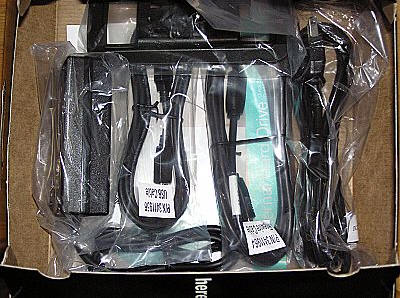
Underneath, was the prize…
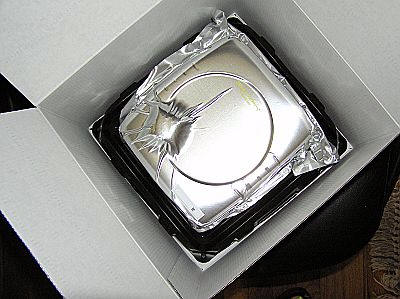
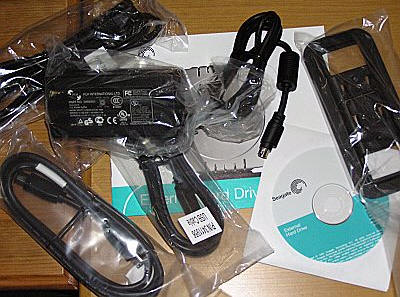
Tucked inside a foil shrink-wrap was 400GB of gadgety goodness. This package includes the external hard drive,
USB cable, FireWire cable, AC adapter and power cord, black plastic stand for
vertical use, quick start guide and a bundled software CD.
What exactly does 400 GB equal? According to the packaging its "thousands of
business files, 6400 hours of digital music, 100,000 digital photos, 400 hours
of digital video and 575 games."
Drive Specifications:
7200 RPM
8MB Cache
350 Gs Non-operating
Less than 15 acoustic decibels when operating
Blue LED Power and Activity Lights, orange LED backup button indication light
More info may be viewed
here.
Once I had freed the external drive from the packaging, I was able to get my
first good look at it. Encased in black vented plastic which is sandwiched by
contrasting silver sides, it just so happens to perfectly match a large
percentage of the computers available today, including my Dell. Intended to be
stackable, one side has a slightly recessed bowl, while the other has a rubber
ring that is made to fit into the bowl of another hard drive case. For those
that only have one, it can be stood vertically on the included black plastic
base.
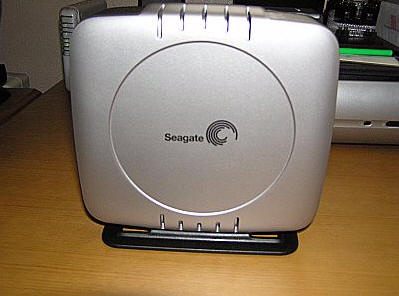
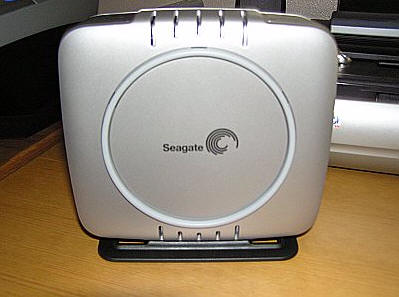
Standing upright, it measures approximately 7" tall x 7" wide x 2.5" wide. Were
it to be used in a horizontal configuration, it would be approximately 2.25"
thick x 6.5" wide x 7" deep. The casing is quite solid, and when
squeezed does not give or creak. I love the idea that these drives can be
stacked and daisy-chained together, creating a mind-boggling amount of memory.
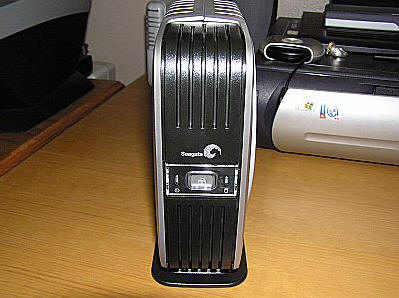
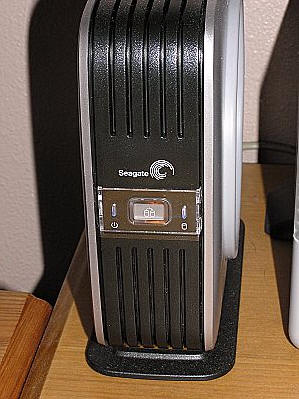
When installed upright, the front of the Seagate looks like this and includes
the following: a blue LED power indicator light, a backup button which glows
orange when in use, and a blue hard drive indicator light.
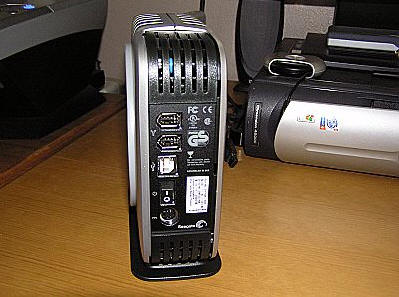
The backside of the hard drive includes (from top to bottom): two IEEE 1394a
FireWire ports, a USB 2.0 port, the power switch and the power connector for the
AC cord.
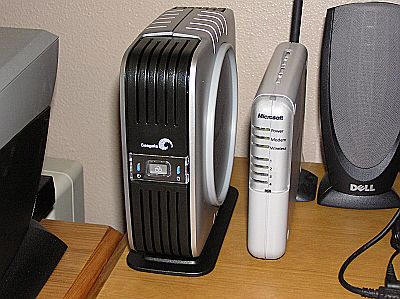
Hooking the external drive to my computer consisted of plugging the power
cord into both the wall and the back of the drive as well as attaching the USB
2.0 cable, with wide end to the plug on the back of the drive and the standard
end to a USB port on the back of my tower. Then it was just a matter of scooting
the Seagate into a niche on my desk. One seated, I flipped the power switch on
the back of the drive.
According to the included manual, when the drive is turned on, one should not
move it. Doing so risks excessive wear, reduced reliability and possible data
loss. Once the drive has been turned off, it can be safely moved about.
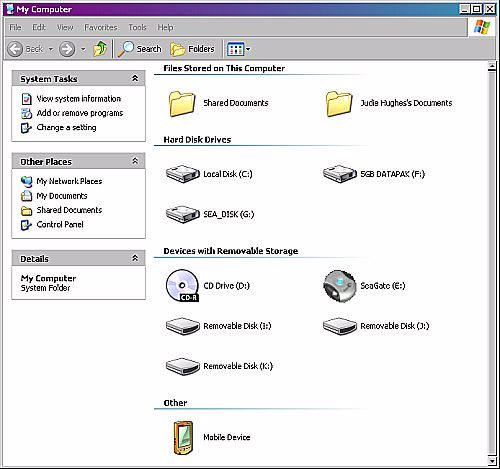
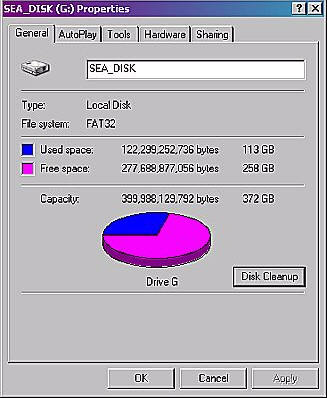
The Seagate external hard drive is plug and play, so even without running the
included software, once can immediately begin moving files to the drive. It is
shown on my computer as drive G:, labeled "Sea_Disk".
Just to test things out, transferring a folder of 360MB took 5 minutes 25
seconds, and a much smaller file of 1.57MB took only 14 seconds. The only
problem with this type of transfer is that it is complete and not incremental.
In other words, by doing a copy/paste to the drive I have to move everything
– including files that may not necessarily have been changed since the last time
I saved them. This takes more time than an incremental backup would.
However, part of the reason for having so much glorious extra space sitting
on my desktop is that I want it to make life easier by doing automatic
backups. I may have a decent memory, but I can always be counted on to forget
something – and backing up my data should not be left to that sometimes faulty
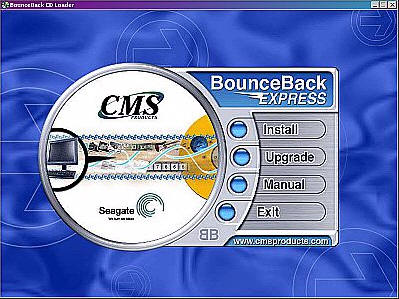
memory. Therefore, I installed the BounceBack Express software included on the
Seagate CD.
Upon running, the options to Install, Upgrade, read the Manual or Exit are
offered.
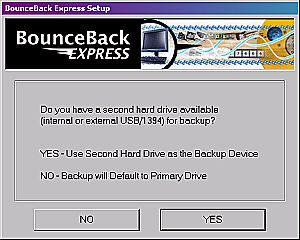
Installing the software causes the following window to pop up, asking if
there is a second hard drive or if backups will be done to the primary (C:)
drive. Since I have just installed the Seagate external drive, the answer is
"Yes".
Next, my system is scanned for any hard drives other than my primary. Before
the scan, I had unplugged any other drives, so the following was all that
showed…
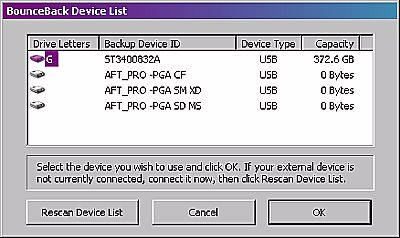
I selected the G: drive and hit "OK". Next I was directed to register the
product, which I did. Upon exiting that window, BounceBack Express began to run,
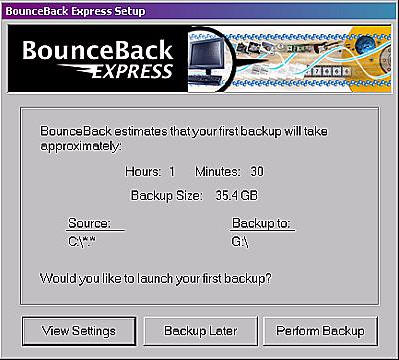
scanning the size of my backup. Looking at what was presented here, it appeared
that BounceBack was ready to copy my entire C: drive to the Seagate on drive G:,
and that it would take about an hour and a half for this first backup. Wow, this
program gets right to business! Clicking "Perform Backup", BounceBack
Express began
doing its work…
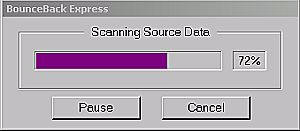
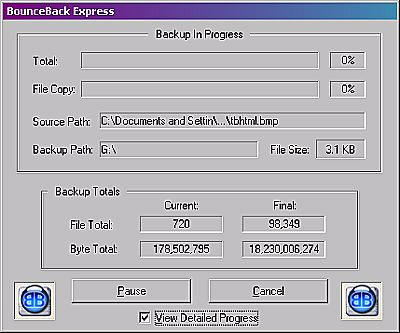
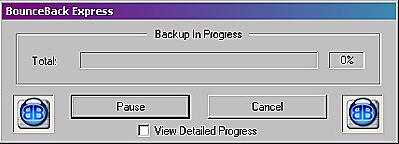
Once the source data was scanned, the actual backup started…A less detailed
view could be seen by unchecking the view button.
So began the process of waiting for the first full backup. A quick peek at my
G: drive as it was filling showed that sure enough – my C: drive was being copied
verbatim. I am not sure that I would ever necessarily need all of my C:
drive files after a catastrophic hard drive crash, since I have always believed
that a fresh install is better on a clean drive, but it is good to know that
should I need a particular program file or obscure folder – I’ve got it handy
now.
As this long backup was occurring, I heard several clicks and clucks from the
Seagate, as well as a low rumbling as the disk was turning. It was actually
surprisingly quiet and un-obnoxious. As the backup was occurring, the blue LED light
indicating hard drive usage glowed steady as the orange LED backup light
blinked.
When the backup finished, two hours and thirty-eight minutes later, I did
indeed have a full complete copy of my C: drive. However, there were evidently
some errors that occurred during the process…
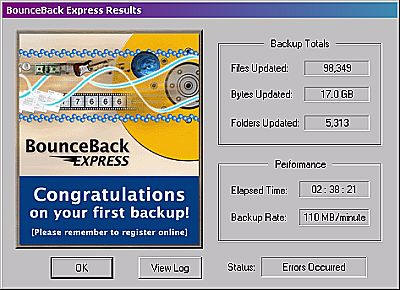
Reading the log revealed that the majority of the errors were from copying
certain system and temporary files. I did notice that with a good bit of hard
use, the Seagate did warm up slightly. It never became hot though, so evidently
it cools efficiently.
In all honesty, I don’t think that would be a backup I would necessarily want
to do again, so this is where the BounceBack software can come in quite handy.
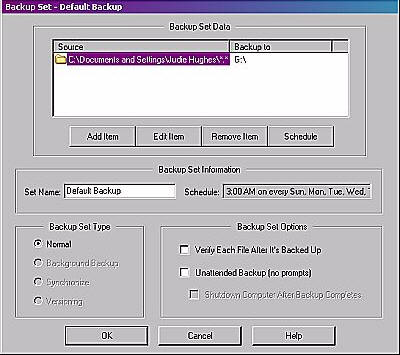
It can be configured to perform backups on particular files from any drive on
the computer, and the copied items can be saved in a particular file on the
Seagate drive. So instead of a general C: to G: backup, I scheduled a "My
Documents" backup to occur every morning at 3am, and a "Programs" backup to
occur once a week on Sunday morning at 4am.
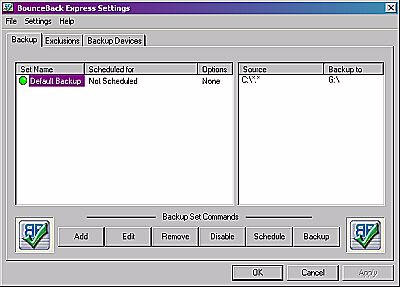
What’s great is that future backups take nowhere near as long as the
first backup will, because they will only involve those files that are new or
have been changed since the last backup. Backups can be initiated either through
the use of scheduling or by pushing the backup button on the front of the hard
drive. When there are multiple configured backups in the BounceBack Express
scheduler, then the backup that will be launched is determined by whichever is
marked as "Default".
For my use, the BounceBack Express software works just fine. However there
are those that might need more specialized features, such as bootability (is
that even a word?), advanced restoration, specialized synchronization and
versioning. These features are available for an additional fee if the user
updates to
BounceBack Professional. One of the few cons that I can see to this hard
drive is that I have not yet seen a way to secure or encrypt its data out of the
box. Though I don’t necessarily need that feature on (what I consider) a
non-portable drive, there are some that will. Security is available to those
that buy the Professional version, however – which may be a very good reason to
upgrade if none of the other reasons were enough. A full comparison between
Express and Professional can be seen
here.
As to filling 400GB, I haven’t come close…yet. Even with backups of the the
six sites I help run, all of my digital media and full copies of the My
Documents and Program folders, as of today I have loaded the Seagate with
just 113GB. I guess I’ll need to get busy ripping a few more CDs and DVDs.
;0)
The combination of the Seagate 400GB USB/FireWire Hard Drive with BounceBack
Express software has truly given me a peace of mind that I did not have before.
I almost liken the days when I didn’t do regular backups to someone playing
Russian Roulette. Sure, the chance of a disaster happening may have been small –
but if the worst had happened, then it would have been a painful disaster.
If you have been putting off getting an external hard drive, then you need to
think about what’s holding you back. If it’s that you think it will take up too
much desktop space, then that is certainly not a problem here. If it is that you
think it will be too hard to set up and operate, then I can assure you that will
not be the case. If it is that you think it will be too costly, then take a look
at the Seagate’s price. I think you will agree that it is a fair price for peace
of mind.
Price: $330
One year warranty on parts and labor, Free Tech support even after the warranty
ends
Pros:
One touch backup
Easy to set up hardware & configure the software
Ability to set up specific backups at specific times on specific days
Can be daisy-chained together for massive memory amounts
Cons:
No way to set up security or encryption on the drive without purchasing
additional software
Product Information
| Price: | 330.0 |
| Manufacturer: | Seagate Technology |
| Pros: |
|
| Cons: |
|
