
It’s hard for me to believe that I’ve not reviewed a BlackBerry device in over 6 years. The last device that I reviewed was the 950, which was an email only device shaped like a pager. Back in 2001, BlackBerry products did not have telephony capabilities. These devices were for one purpose and one purpose only: email. Wow, times sure have changed, haven’t they? That’s especially evident with the BlackBerry Pearl 8100 series smartphone. This little beauty sports a quad band GSM radio, a wonderful display and an innovative trackball pointer. Will this phone cause me to put my Treo 680 and 750 in my drawer o’ phones, or will it end up there itself? You will have to keep reading to find the answer.
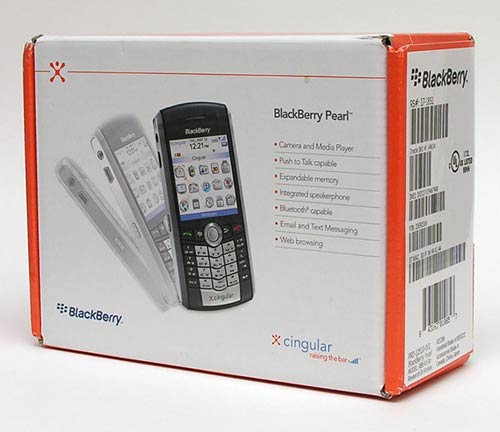
Hardware Specs
Processor: 312 MHz Intel Xscale processor
Wireless: GSM/GPRS/EDGE, Quad band (850/900/1800/1900 MHz)
Memory: 64MB Flash
Expansion Slot: MicroSD
Display: 2.2 inch 240 x 260 pixel TFT, 65,000 colors
Bluetooth 2.0
Digital Camera: 1.3 megapixel, with 5x digital zoom, 352 x 288 pixel resolution
Battery: Rechargeable 900 mAh lithium-ion
Talk time: up to 3.5 hours
Standby time: up to
15 days
Size: 4.2 x 1.97 x 0.57 in
Weight: 3.1 ounces
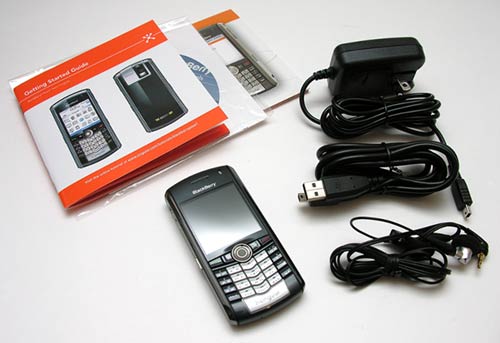
Package Contents
BlackBerry Pearl
AC charger
USB cable
Handsfree wired headset / microphone
Getting Started Guide
Push to Talk Guide
BlackBerry User Tools CD
The Pearl is a thin candy bar style phone that fits easily into most pockets. I personally prefer candy bar phones and really have enjoyed the form factor of this one.
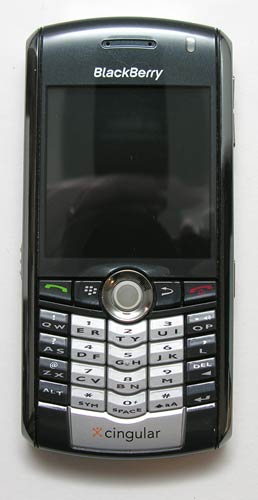
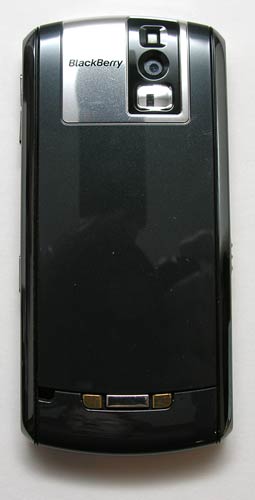
The case is made of a shiny charcoal and chrome colored plastic. The upside is that this phone looks very slick, the downside is that the back attracts fingerprints and smudges quite easily.
Half of the front of this device is taken up by the 2.2 inch color display. I know that sounds really small for a smartphone, but in reality, I’ve found the display to be more than adequate. It’s bright and easy to read in all lighting conditions. A built in ambient sensor automatically adjusts the screen brightness based on the current light levels. Unlike the Pocket PCs that I’ve used with this feature, the BlackBerry actually does a great job with it.
Above the display is a status LED that blinks Red when you have a new email or voicemail. It also blinks Blue when you are paired with a Bluetooth device.
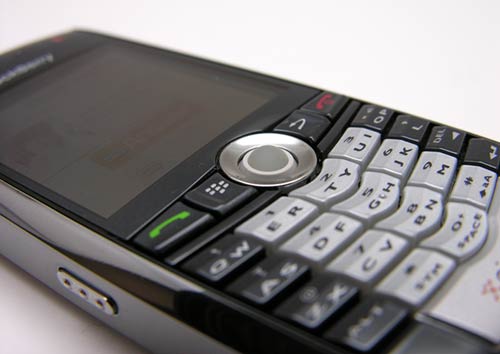
Below the display is the ‘pearl’ trackball mechanism and dial pad / keyboard. I wasn’t really sure how well I would like using the trackball as I’ve never been a fan the full size computer input version. But after only a short period of time adjusting to it, I’ve come to find that I really like it. The ball itself is pretty small. If I were to compare its size to a another object, I would have to say that it looks to be close in size to a BB. You know, the little copper colored orb that you shoot out of an air gun… The trackball rolls freely in all directions and has a smooth but not slick surface. It’s easy to use your thumb to control the ball. It’s also a bit springy and has good tactile feedback when you press it in to select items.
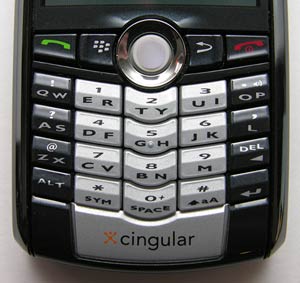
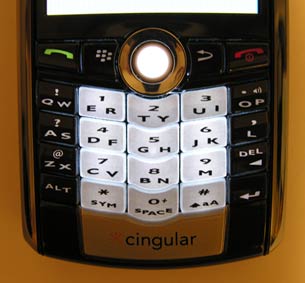
The keys and trackball are both backlit. Like the display, an ambient light sensor controls the backlight for this area. As you will notice from the images above, the BlackBerry Pearl does not have a typical QWERTY style keyboard. There are 25 keys including the trackball. On either side of the trackball, there are 2 keys. On the Left there is the Send and Menu keys. On the Right side, there is the Escape (Back) and End/Power keys.
Most of the main keys do triple duty in that they will be assigned to 2 letters and 1 number or symbol. You might be thinking that entering text with this phone will be a laborious task. Actually, that’s not the case because the BlackBerry uses something called SureType. It’s a very nicely implemented adaptive text style of typing. For example, most non QWERTY keyboard style phones have something called Multi-tap where you have to press 1 key multiple times in order to select the desired letter. With SureType, you just press the keys normally and 9 times out of 10, the word you want is shown correctly. If not, you can choose the correct word in the word list shown on the display. More about that below.
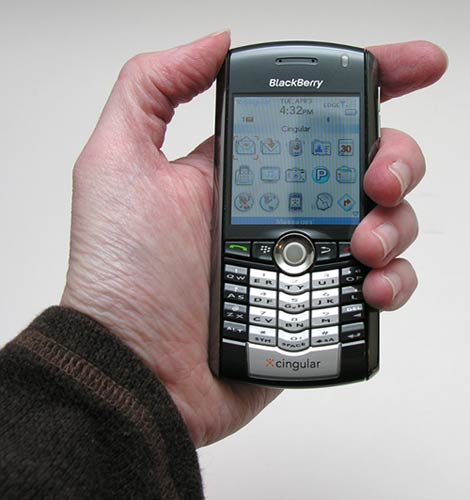
In hand the Pearl feels great. It’s the perfect size for a phone that just happens to also have quite a few smartphone features built in. I really appreciate that this device looks and feels like a phone instead of like a PDA brick that you can make calls from. It’s solid and passes the Gadgeteer squeeze test with passing marks.
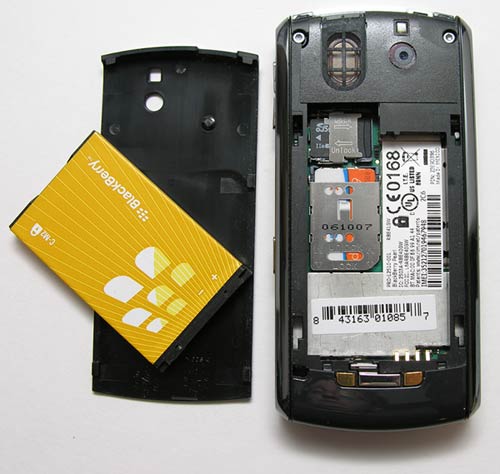
The back cover is easily removed (don’t you hate phones that require a pry bar to open them?) to reveal the battery compartment, SIM and MicroSD slots.
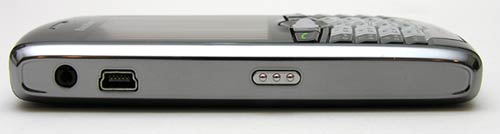
On the Left side of the phone, you will find the earphone jack (2.5mm), mini USB sync / charger connector, and the Left convenience key which is mapped to the Push-to-Talk feature by default.
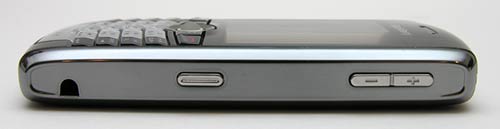
On the opposite side, you will find the volume adjustment buttons and Right convenience key which is mapped to the camera application by default. Both convenience keys can be remapped to the applications of your choice. The hole you see on the Left in the image above, is a lanyard attachment point.
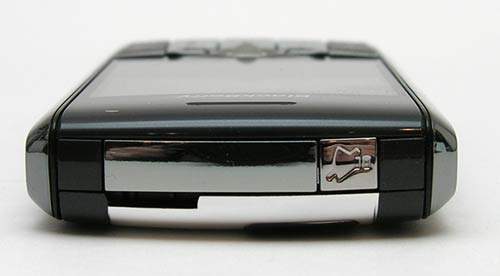
If you look at the top of the BlackBerry, you’ll find a Mute button and a slit in the case. I believe that the slit is the ambient light sensor, but I could be wrong. The Mute button does not turn off the ringer, it turns off the speaker when you are in a call.
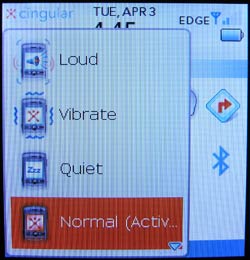
To turn off or change the ringer, you can either press and hold the # button or go into the profiles application from the main menu.
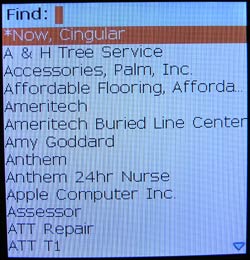
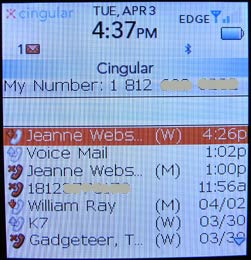
There are several ways to make a phone call with the Pearl. You can search your address book for a contact and click the trackball on their desired number. Another way is to go into the phone log and click on one of the listings in the log to call that person. Yet another way is to use the built in voice dialing feature which works pretty well. You can always just start typing a phone number or a person’s name from the main menu and you’ll presented with a listing of names that will continue to filter as you type.
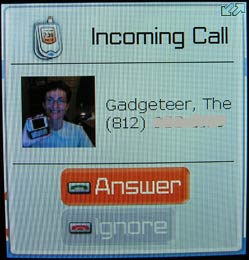
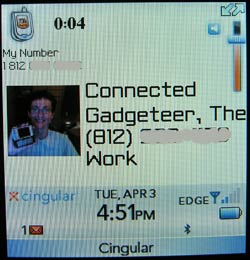
This is what the screen looks like when a call comes in. You have the ability to answer or ignore the call. Ignoring the call will immediately send the caller directly to voice mail. Too bad there isn’t an ignore with text message option…
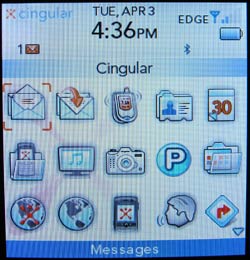
The default Cingular ‘desktop’ looks like this. You just roll the trackball to the desired application and press it to launch. The phone also comes with some BlackBerry themes, but I find the Cingular theme to be easier on my eyes.
Let’s take a look at the built in applications. The Pearl has all the necessary PIM (personal information manager) apps that you would expect from a smartphone phone. Since I’m a Mac user, I did not install the included PC desktop software package. Instead, I use MarkSpace’s MissingSync for BlackBerry. It allows me to easily sync with iCal.
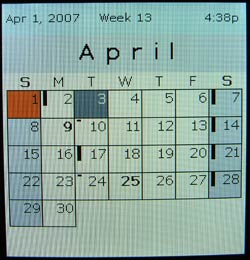
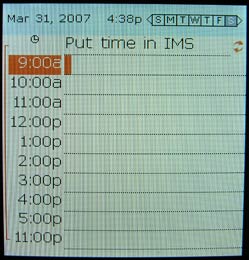
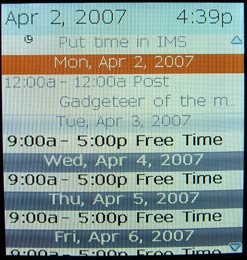
The Pearl has a Calendar application that looks and feels remarkably Palm-like. The calendar has monthly, daily and agenda style views that you can choose from. You can set the default view that you would like to use every time you launch the calendar app.
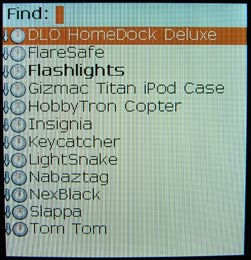
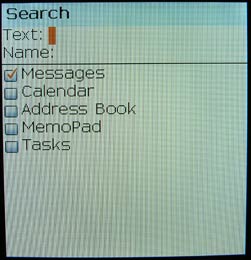
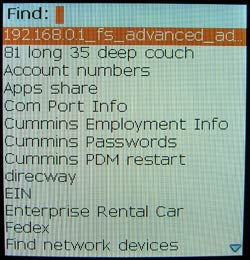
There is a Task application, Search app and a MemoPad app. I really like that the search application searches for text inside the memos from the MemoPad app. And I’m very happy that the Pearl includes the MemoPad app that syncs
wonderfully with my Mac using MissingSync.
When you think of a BlackBerry device, you naturally think of email. This phone is no different in that regard. It has strong email features that can be used with an exchange server or a plain old POP email server like the one your ISP offers. The only thing you will need to be able to actually access your email though is a data plan. Actually, you’ll need a data plan to do any data related tasks including email, web browsing. That fact became painfully clear to me after I purchased my Pearl from eBay and was unable to surf the web right out of the box. I mistakenly assumed that my regular Cingular Unlimited Media Net plan would allow me to do everything I would need. I’ve never ran into issues with other phones I test, so I didn’t think I’d have a problem with this one. Wrong.
A BlackBerry device is a different animal than other phones. You must subscribe to one of the BlackBerry specific data plans in order to fully enjoy the benefits of the phone. These plans range in price from $34.99 – $79.99 per month (these prices are with Cingular. Other carrier’s prices will vary) on top of your regular cell phone bill. I opted for the cheapest plan at $34.99 /mo. Once they turned on the service, email and web browsing were magically enabled.
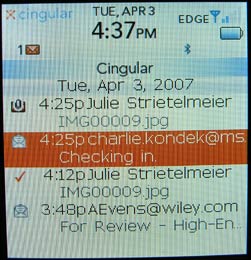
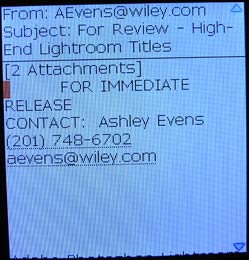
I decided set up my regular [email protected] email address for the Pearl. Set up is easy either through the browser on your phone or using your desktop web browser connected to your BlackBerry web account.
The email interface on the phone is not very fancy as you can see in the images above. That’s one disappointment that I have as I wish there were more bells and whistles. Some features that I find missing are the ability to create and save messages to folders, html email viewing, multi message selection for deleting. I would have to say that the last issue that I mentioned in that list is the one that annoys me most. Every morning when I first check the phone, I would find over 100 emails in the inbox. Usually, I wait till I get to work and use a web interface to read, respond and delete mail. At some point during the day though, I’d have to manually delete each email one at a time on the phone. Tedious is an understatement when you receive as much email as I do. There is a setting to automatically delete messages after a predetermined time… but 15 days is the lowest setting.
So, that’s the bad side of email on a BlackBerry Pearl. The good side is that this phone typically receives new email faster than my desktop computer. There’s also the fact that you don’t have to tell it to go fetch messages. It does that automatically.
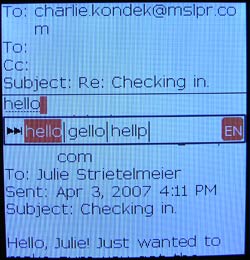
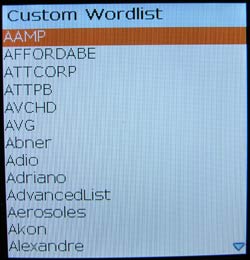
Composing and responding to messages is pain free with SureType. As you type, it senses the correct word and displays it as you type. If that word is not what you want, you can choose from a list of other words that fit with the letters you pressed and select from them. In the example above, I typed the word hello, which it correctly guessed without me needing to correct it. If that wasn’t the word I wanted, I could choose from the other words listed. You can also edit the word list to add words that you commonly enter that the phone doesn’t recognize. All in all, I have found entering data on this phone to be almost as comfortable as doing similar tasks with my Treos.
Now let’s check out the browser.
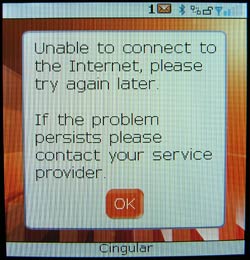
For some reason there are two browsers on the BlackBerry, but I’m really not sure that they differ in any significant way. They both start up the same, look identical, have the same menus and are annoyingly slow. Granted, I only have EDGE in my area. But I have found surfing with this phone to be pretty frustrating. More than 25% of the time, I’ll receive an error like you see above when I try to launch the browser.
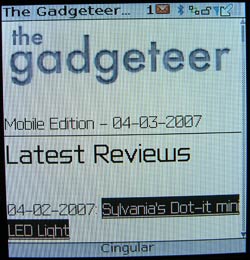
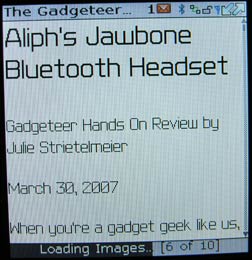
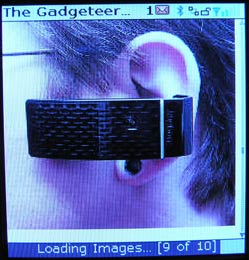
Pages do look fine with the built in browser though. Graphics render just fine and navigating from link to link with the trackball is not uncomfortable. Of course the screen is small, so it’s not like you would ever consider making this device your primary web surfing machine.
I also tried the Opera mini browser with this phone. It’s a bit less annoying than the built in browser, but not by a significant margin.
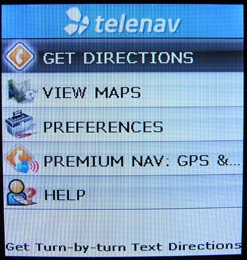
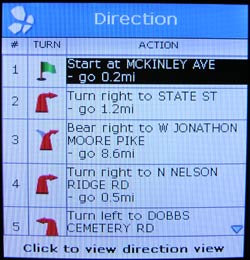
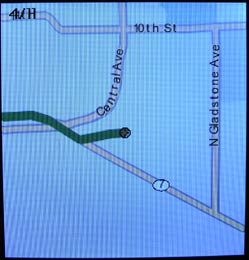
The Pearl also has a nifty mapping application (TeleNav Maps) built in that you can use to get turn by turn driving directions. The free versions requires you to feed it starting and ending addresses, but with the premium version ($9.99/mo.) and a Bluetooth GPS you will get voice GPS directions.
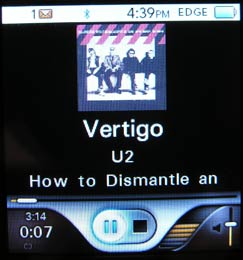
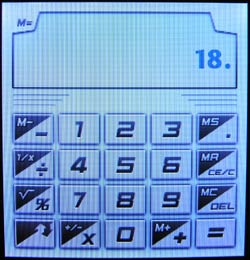
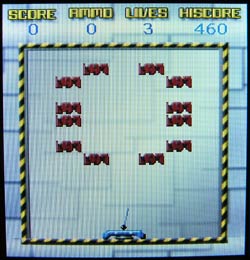
A few of the other built in applications include an MP3 player, video player, calculator and an breakout style game which is pretty addictive.
The built in camera on the Pearl can take pictures with resolutions of 1280 x 1024, 640 x 480 and 320 x 240. It also has a built in LED flash that helps for low light shots. Like most phones, images captured by built in cameras typically aren’t too great. I found the BlackBerry Pearl’s camera to be better than average though. Check out my sample pix below.
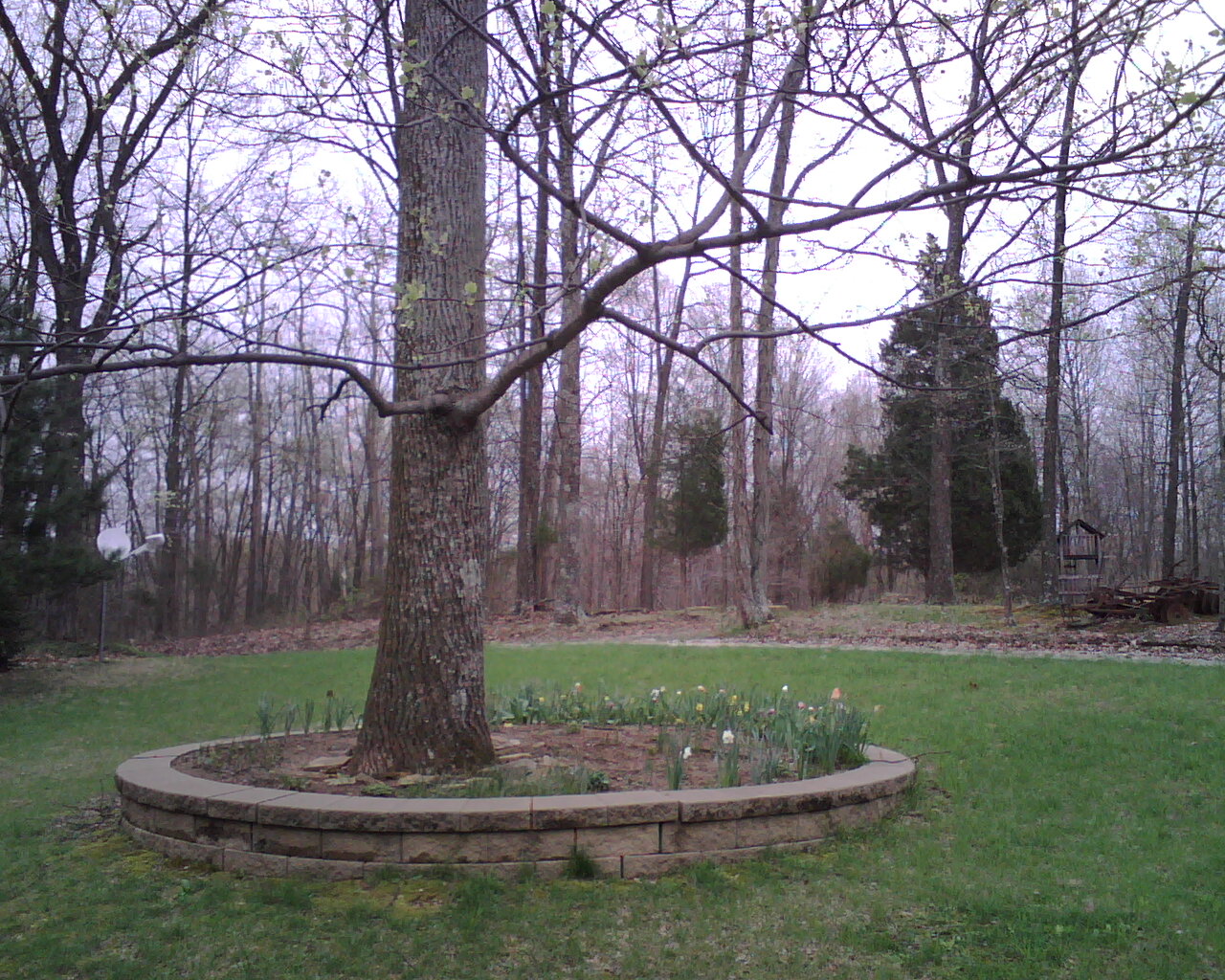
Click thumbnail to see full-size image
I have really enjoyed using the BlackBerry Pearl for the past 2 weeks. I love the form factor, enjoy the trackball, love how fast the phone pulls down my email, and have been impressed by the battery life and reception. All that said though, I’m sad to say that a few issues will keep me from making this my main smartphone… First and foremost, the biggest issue for me is the expensive monthly data plan. Then there’s the email client. It lacks some important features that keep me from totally loving it. Another problem is the slow web browser. But I could live with that since I don’t really surf all that often with my phone. I guess the BlackBerry Pearl is going to go live in my drawer of misfit phones for awhile… It’s a sad sad thing…

Motorola Moto G Play | 2024 | Unlocked | Made for US 4/64GB | 50MP Camera | Sapphire Blue
33% Off
Apple iPhone 14 (Renewed), 128GB, Midnight - Unlocked
5% OffProduct Information
| Price: | 399.99 |
| Manufacturer: | Research In Motion (RIM) |
| Pros: |
|
| Cons: |
|

Gadgeteer Comment Policy - Please read before commenting
Post your comments on the BlackBerry Pearl 8100 Smartphone review.
http://www.the-gadgeteer.com/review/blackberry_pearl_8100_smartphone
Just click the POST REPLY button on this page.
Thanks for the review. I’m actually thinking about getting a blackberry phone in the near future. Just for the email ability. As I check my email constantly throughout the day on my computer.
I have the blackberry Pearl through t-mobile and the cost of their blackberry plan add-on was what sold me. It only costs about $20 per month to have full internet access (unlimited) and the nifty email features. Since having these conveniences is not a necessity for me I didn’t mind spending only $20 for them. I am hooked on my Pearl and since getting used to the scroll ball I feel awkward when I go back to using any other phone. Also the type system with the Pearl (two letters on many keys) is so easy once you learn to ignore what it’s typing until you’re done with the word. It guesses the word correctly 95% of the time. I just force myself not to look and keep typing.
I found a tutorial on how to set up the phone with my MacBook Pro via bluetooth and connect to the internet with it when wifi access is not available. It works GREAT and doesn’t seem that slow. Definately usable. What a nice feature. I don’t even take my phone out of my purse (connects via bluetooth to my car also without a hitch). I click on a little phone icon on my task bar on top of the screen of the macbook pro and it tells me it’s connecting…..then connected…and voila….use internet for email, chatting or browsing as I need! Have used this while driving and it’s a great thing!!
Anyway, not sure how you can give it up (yes, I used to have the Treo but couldn’t justify the verizon cost for internet access).
Dripps:
It’s the additional $35 a month on top of my regular monthly Cingular bill that keeps me from sticking with the Pearl.
You should be able to set up a filter or two in your BIS webpage (on cingular: https://bis.na.blackberry.com/html?brand=mycingular) to trim down some of the email your getting.
…but I agree, the multiple delete would be nice.
There is a “delete prior” option if you’d like- In your message box, you can select either an individual message, or you can select a whole day (by selecting the row showing the date). If you select the date and hit the menu button you will see “Delete Prior” and “Mark prior as open” that applies to all messages older than that date.
If you’re worried about losing an item, you can save what you want (in the saved folder)…so when you select “Delete Prior” you will also be prompted if you want to keep the saved messages.
Eddie_Lopez:
Great tips! The BlackBerry is a great device. I’m even considering trying the 8800 now 🙂
I’ve got the 7130e BB (with suretype) and you can select multiple messages by hitting the # key (which doubles as the CAP button) then scroll down the messages that you want to save or delete or whatever. I would assume it would also work on the pearl. Not being able to view HTML emails is a bummer, and possibly will not fully realize in the near future since mobile web browser would be limited to WAP sites.
The tips for deleting email are seriously making me consider using the Pearl and keeping the BIS data plan… Darn you guys! 😉
Ah yes, that is a better solution (the alt key to multi-select). But do look into the BIS filtering, that might reduce some of the need to delete large swaths of emails if you know you don’t want to read them on your handset.
I’m going to upgrade with the 8300 makes it’s debut. I’m not really a fan of sure-type. I find it works pretty well if your a great speller and typist. But when I misspell a word or fat finger it, it goes from a one letter mix up to a complete redo for the whole word as sure type doesn’t know *what* to do with an idiot like me.
And then if you’re in the middle of a long one and you get an “are” when you mean “see” (the same key combos) and you don’t catch it, it’s really can screw up the whole meaning. I have on a number of occasions went back to look at my sent SMS and find a completely different word than I wanted. Frustrating!
I have flip-flopped between my BB 8100 and my Treo 680. Nothing beats the BB in terms of email and battery life as well as software stability. For the same amount of usage (daily emails, PIM, etc), I can get 3-4 days on my BB compared to 14-18hrs on my treo in between battery charge. The only thing that really the BB lack (at least for me), is the microsoft office integration (like Documents to Go). Yes, there is a program called “EOffice” for the BB but it is primitive.
For ebook reading, Mobipocket has a BB version that also makes use of memory card storage for the books, so I am very happy with that. There are also a few drug database programs for the BB (LexiDrugs, Pepid, Tarascon Pharmacopeia) that I find useful…as you can guess by now, I am a physician.
I do hope that there will be more medical and productivity applications for the BB in the future, since I really love this device. Once the BB 8300 comes out in Canada (camera, full keyboard, expansion card, ?GPS, ?Wifi), then I will switch my BB 8100 (Pearl) to the 8300. In the meantime, I will use my Treo as a backup phone.
BTW, in Canada (via Rogers), the data plan for BB is not too different in pricing compared to data for my Treo…it is expensive to have one or the other…so I picked BB for the reasons I stated above.
I used to have a 7100t, I miss having GSM. I had also gotten somewhat proficient with suretype….did a lot of mobile blogging when I moved.
But, I couldn’t get a local GSM number after the move, so I had to look at CDMA…and went with the 8703e (and Sprint)….though I’m considering going back to GSM, and I can port my number…. CDMA at my home and in the office is kind of spotty, while I had 5 bars GSM at work and I recall it being pretty good at home. But, between home and work…I would lose calls on GSM, but see 5 bars on CDMA….
Battery life is quite different….don’t know if its GSM vs CDMA or the device….but I could get almost 3 days with the 7100t, but some days I’m pushing it with the 8703e…and the 8703e’s battery is 20% more capacity (and it’ll work in the 7100t, though the 7100t’s battery won’t work in the 8703e).
But, now I have a 3rd party high capacity battery…and the 8703e is more usable.
The only thing that isn’t covered under portability rules is keeping my blackberry email address 🙁
It seems everyone has fixed your email problems. (How to scroll select, and don’t forget about the gmail client :))
To your problem about the price: Go to t-mobile, it is only 20 bucks a month for the unlimited plan.
It seems that your browser is unusually slow. I am not sure if you have two because of cingular, or what. But you should only have one (not including opera mini if you decide to use that) My browser loads just fine. (No match for 3G, but still not too bad at all.)
Other than that, you’ve got to love this phone. With a great forum like pinstack, you’ll have all the help you could ever need. SD cards allow you to put all your media files on your phone. (There are plenty of converters that can change your files to .avi or .mp3 if you need.) And the third party apps are AMAZING! There are free/relatively cheap things for anything you could ever need. Do yourself a favor and keep the pearl 🙂 (and get tmobile :P)
douhollee:
I can’t switch to T-mobile as the coverage here for that carrier is very sparse. I still haven’t turned off my BIS service yet 😉
What actual capabilities will I have and not have with only the $8.95 Media Package from cingular? Will I still have internet?
This is my first Blackberry of course or I probably wouldn’t be asking.
Thanks
Tom
thomasmcclr:
If you want a Blackberry device you need the special Blackberry data package. My unlimited media net plan through Cingular did not work with the Pearl. It did not allow email or web surfing.
Yep Julie is absolutely correct. If you have Cingular, you will need to add one of the blackberry BIS or BES (if your business has an enterprise server) data plans to access the internet and e-mail etc… The PDA plans, smartphone plans, or media.net plans will not work.
Great review Julie. The pearl is a sweet little machine. 🙂
I actually CAN use Cingular/AT&T’s MEdia net service on my Blackberry Pearl. I like the phone, but didn’t like being constantly alerted to personal email when I’m on the go. It’s intrusive, so I canceled the service and just went with the $9.99 text/browser service. Works fine.
The only annoying problem is I can’t get my phone to drop the “data connection refused” message at the top of the screen.
i’ve been debating between the pearl and the curve. i finally gave up on my 700p and decided to move to blackberry. i decided to pick up the curve(8300) and i’m so happy now. i’m glad i didnt pick up the pearl, cuz i need the full qwerty keyboard. has anyone here experience dust under the screen??
In regards to deleting the emails off of your phone…press and hold down the #/aA(caps) key, using your pearl button scroll down highlight the desired emails and then press the back key scroll down to delete then confirm deletion. This was found out by accident. was not in the manual. will delete as many of them as you want at one time.
Good luck!!!
Collette
Hello there,
I have a problem with my BLACKBERRY 8100 PEARL.
It went Off because the Charge was Over and put it in the Charge for almost 4 hours and when I tried to turn it on it Displayed the word BATTERY DRAINED …. And it never turned On.
PLEASE GUYS ASSIST ME I can not use my Device anymore because of that.
U’m a newbie on an old 8100. Took some getting used to texting with the keyboard setup but I’m now a fan of smartext. Don’t really like the way the mess sys is set up fundamentally,ie.the differention between SMS,mms etc. Again, just an unfamiliarity factor that will cease with practice. Wish it had an option for numeric keypad style input as opposed to the modified keyboard style. I’m really not a complainer, this is an opinion and rant/rave forum, huh? Anyway, I’m rather ignorant to some of this…do I have to install a new operating system in order to download videos from web, and also, how do I download a photo from a website and be able to store in pics, or anywhere, for example, and use it as wallpaper’etc.? Sorry so lenghty!
I am using blackberry 8100 pearl i work fine before but now it didnot connect my wired headset need help