
Does anyone truly enjoy visiting their local post office? I don’t think I’m the only person that doesn’t look forward to standing in line during my lunch hour or after work, just to buy a few stamps or to mail a package. As a result, in the past couple of years, I’ve used the USPS website to print my priority mail labels. This saves me wasting 30 minutes or more standing in line. But it always seems that I’m out of regular first class stamps, or if I do find unused stamps in a drawer, I’m never sure if they are the current value. Today I’m going to tell you about the DYMO LabelWriter Twin Turbo. This dual printer just might be the solution to all of your postage printing and label printing needs.
DYMO is not a new company, it was first established in 1958 in California, where it introduced the first personal label maker: the embosser. 48 years later, DYMO is still selling personal label printers, along with industrial and professional label printers. The Twin Turbo falls into their professional printer line. This desktop sized device features not one, but two label spools. This allows you to print address labels and postage without the inconvenience of swapping media.
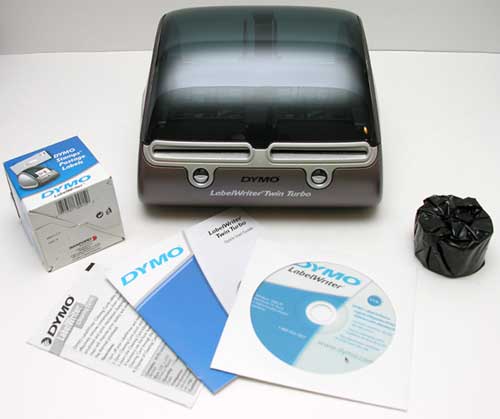
Package Contents
LabelWriter Twin Turbo printer
Power cord
AC adapter
USB cable
One roll of address labels
One roll of postage stamp labels
DYMO software and manual on CD
Quick Start Guide
The printer has a footprint of approximately 8 inches wide x 7 inches deep x 5.5 inches high. It is made of Grey plastic with a smokey see through cover that remains closed except when loading or unloading the label rolls.
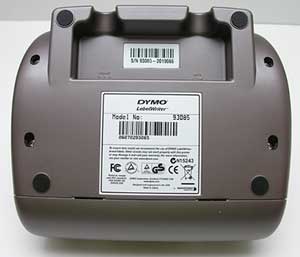
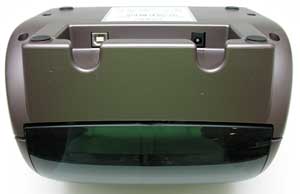
The Twin Turbo connects to your Windows or Mac computer via a full sized USB cable (included). Connectors for both the USB cable and AC adapter are located on the bottom of the printer. Convenient cutouts allow you to route the cables out the back side of the printer.
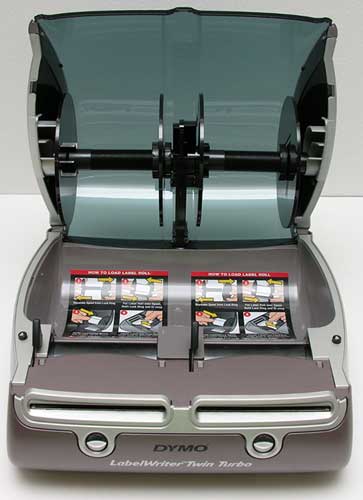
Opening the cover reveals the two black plastic label spools. The spools lift right out of their holders, without any tools or effort.
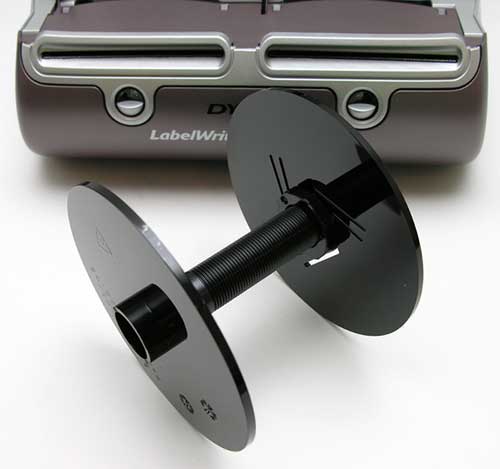
The right side of the spool (the guide) slides off to allow for the address labels or postage labels to slide on.

Included with the printer is one roll of address labels and one roll of postage stamp labels. Loading them on the spools is a very simple task. You just slide them on the spool so that the label feeds from the bottom of the roll. Then you slide the spool guide back on and press the sides firmly so that there isn’t a gap on either side of the roll.
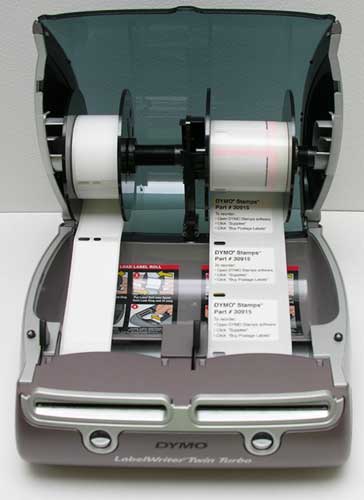
After you do this with both rolls, you place the spools back into the slots in the printer cover and feed the labels into the label feed slots. Little cutout slots in the labels enable the printer to accurately know when a new label starts and stops.
The labels are the only media that you have to install into this printer. It doesn’t use ink. The labels are thermal, which means that heat is used to create the images. Replacement labels can be purchased directly from DYMO. Prices vary depending on the type of label, but regular address sized labels are about $20 for 2 rolls of 350 labels each. Postage stamp labels are $16 for 200 stamps.
Before you can print your first label or stamp, you must first install the included drivers and label application. Lucky for me, DYMO has Mac drivers and software. Yay!

After a quick driver install, the new printer shows up in the Printer Browser and is now ready for use.
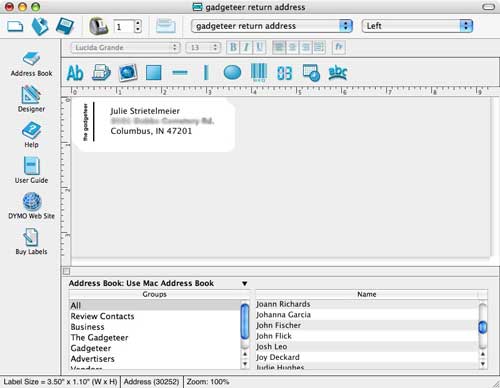
The label making software is easy to use and interfaces with the built in Mac address book or you can create your own labels from scratch. Labels can even include curved text and graphics. Above you see that I rotated “the gadgeteer” and placed it on the left side of my label. Some basic clip art is also included with the software.
In addition to regular address labels, the Twin Turbo can print file folder labels, name tags, price tags, etc. The maximum size labels that can be used are up to 2-5/16″ wide.
Besides labels, this printer can print postage stamps. In order to print postage, you have to create an account through Endicia and download another application. Don’t worry, the account and software are both free. There is no monthly fee or minimum balance required as long as you sign up through DYMO instead of directly through Endicia.
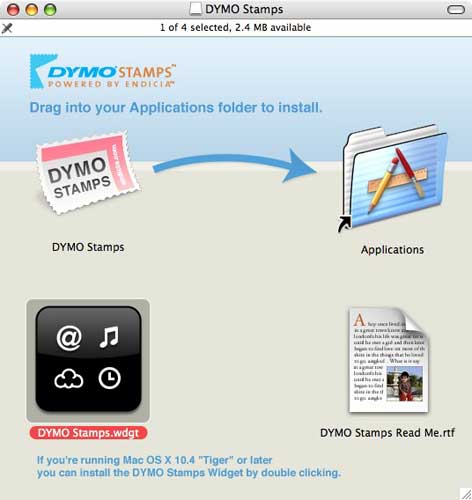
After the account is created and the software is installed, you must add some money to your account. You can purchase as little as $10 and as much as $500 at one time. I’m cheap, so I started with $10. Your credit card or checking account will automatically be billed for that amount and then you can print stamps until the balance is depleted.
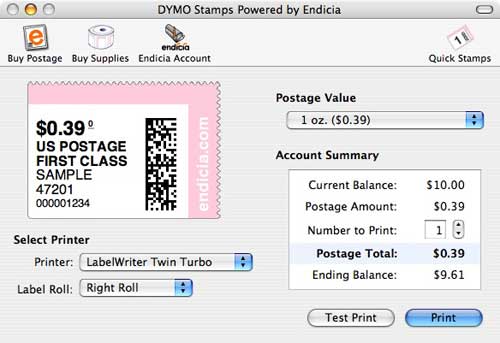
The stamp buying / printing interface is very simple to use. You just choose what price of stamp to print and the quanity. Then click the Print button and before you can say postmaster general, your stamps have printed.

Above you can see all of the choices available for stamp printing.
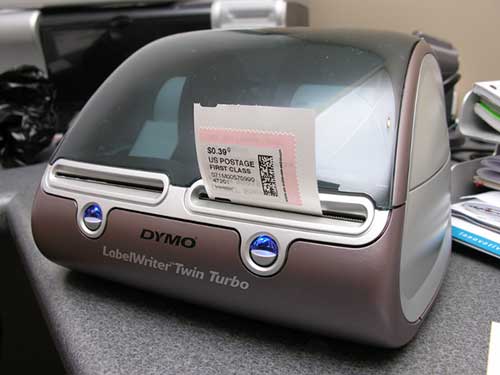
When the stamp(s) finish printing, they can be torn away from the printer using the built in serrated edge.


On the left is a regular first class stamp and on the right, a simple custom return label that I created.
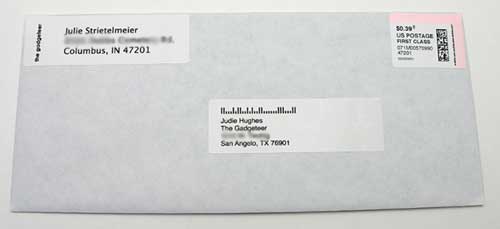
Here’s a letter all ready to go in the mailbox. Neat, quick and simple. I didn’t even have to lick a stamp either! Yay! I really like how convenient and easy this printer is to use. There are only a couple things could make this printer even better. #1: Lower the price a little. $190 puts it up in the “I really have to think about this before I buy it” range. #2: A power switch. As it is, the printer is always on. Electricity isn’t free you know. #3: A counter in the software that would tell me how many labels / stamps I had left to print before new labels need to be ordered. Yes, I’m just being nit-picky on the last 2. I really do like this printer a lot and it’s now earned a permanent place on top of my desk.
Update 05/20/15
I wrote this review 9 years ago and am still using this printer today. I mainly use it to print labels but I occasionally use it to print stamps too. The time of year that I use it most is during the holidays when I send cards and packages to The Gadgeteer team. It’s still working great and I can still buy labels and stamps for it, so I’m happy.
Source: The sample for this review was provided by DYMO. Please visit their site for more info.


Gadgeteer Comment Policy - Please read before commenting
Post your comments on the review.
http://www.the-gadgeteer.com/review/dymo_labelwriter_twin_turbo
Just click the POST REPLY button on this page.
Perhaps I’m confused :unsure:
In the article you refer to Endicia as being free but really it is only a free 30-day trial. Endicia’s pricing page is here. The cheapest plan is $9.95/mo(or $99.95/yr) Windows only. For Macs you have to get the Premium plan $15.95/mo($174.95/yr)also available for Windows.
cmiller173:
You’re the 2nd person to write me about this. I was really surprised when I saw the info and wrote to my contact at DYMO. I’ve pasted his response below. I’m sorry for the confusion and will go update the review.
Julie,
Thanks for another great review. I’ve been wanting to get into printing my own postage for some time but the monthly minimum fees of the services I looked at always put me off. This looks like a great device, and no monthly fees is nice.
However, I suspect the postage is not really “free”. Given the media costs in your review, the address labels come out to just under 3 cents per label, but the stamp labels are 8 cents per. I’m guessing the 5-cent difference per label makes it’s way back to Endicia to cover their fees. Which is fine – much better than the $10 minumum fee (I’d never mail enough in a month to make that worth it).
BTW, Amazon has the Twin Turbo for $155, which takes a bit of the initial sting off.
I guess 8 cents per stamp is the price we have to pay for the sake of convenience 😉
I did run into a situation this morning that I wasn’t sure how to handle. I had a priority mail package to mail that was 1 lb 6 oz. The options to print Priority Mail postage was only for a 1 lb package. I didn’t know if you could make up the difference with regular first class stamps, so I had to make a trip to the post office. Argh. At least I learned that I could have used first class stamps to make up the difference. Next time I won’t have to make a special trip to town. No big deal for people that live close to their post office I suppose, but I live about 15 miles from mine.
FYI, you can now go to the USPS site and print postage for packages that are at least Priority Mail (I believe) using a regular printer with plain paper you tape on with clear tape. Also, you can do the address label at the same time. It is a service called Click-N-Ship and there is even a slight savings if you use the Delivery Confirmation option vs purchasing such at the post office.
For Priority Mail it is also free to schedule a free pickup the next day at your house and you can also tell them where you left the package. As long as at least one package is sent Priority Mail or Express Mail they will also pick up all the parcel post packages you also might have. I believe you must sign up on the web by something like 1AM of the day of the pickup to get the free service. I just went to a USPS Ebay class and learned this. However, I could not get my printer to print out the label properly on my first try, but the package pickup service did work when I just used some regular stamps.
Excellent review, as always.
I bought one of the Labelwriter 400 Turbo printers about 9 months ago, and I love it. Fast, quiet, efficent…like the duo, you can’t turn it off, but it doesn’t seem to use that much power.
By far, it’s one of the best investments I’ve made. My chicken-scratch handwriting is terrible…I’ve always been afraid letters would be lost in the mail. The labelwriter makes it that much easier for me to use.
Also, it appears that owners of the Labelwriter 400 Turbo can take advantage of the Endicia offer through Dymo.
FFSteve:
I’ve been using Click-n-Ship for a long time now. I like the DYMO solution better because it doesn’t require me to cut out the postage label and then tape it to the box or letter. With the DYMO, I just peel and stick. Yes, I really am THAT lazy. 😉 Seriously, anything that can save me even a minute is ok in my book.
Julie,
I just recently bought the Brother QL-500 label printer which is a single label printer. It seems to work very well and I really like its convenience and quality but I don’t believe it can print any postage without signing up for a service with a monthly charge. But it does have a nice on off switch right on the front and seems to have a fairly comprehensive software design package that comes with it.
Am I correct that the stamps the DYMO prints out are not date stamped? That can be a nice feature, especially when sending out rebate forms. Without it, the only advantage I see is that you don’t have to purchase postage in advance and don’t have to go to the post office to do it. Of course most of the stamps sold now are self stick so they would seem to be similar to the ones printed with the DYMO. And I believe you can use a credit card to have stamps delivered to your house, so am I right in saying you are left with the only advange being not having to buy postage in advance? To me 8 cents extra per stamp seems like a lot to pay for that convenience if you are doing any volume.
FFSteve:
You are correct, the stamps do not have a date printed on them (unless it is coded into the bar code on the stamp).
For me the advantage of this particular printer is that I have a stamp printer and a label printer in one box. I can print stamps whenever I want one. I don’t have to type in all the address info into all the fields by manually going to USPS.com’s click-n-ship site. I can just cut and paste an address into the label printer software and print it.
Julie,
Yeah, I’m also all for spending money to save even a small amount of time. Actually, I might even consider one execpt having it remain on all the time is unacceptable for me. The time I would spend unpluging it would closely equal the time I would spend reaching elsewhere for a stamp, but it’s nice to see this is where things are headed. I do the cut and paste with the QL-500 or use a database. Sounds like you need a better tape machine. I just got this one called the Tape Shark which is smaller and more comfortable than the usual larger ones and kind of gadgety.
FFSteve:
I’ll have to google the Tape Shark! 🙂
Not to get this thread too far off on a tangent but here is the one I got:
http://www.officemax.com/max/solutions/product/prodBlock.jsp?prodBlockOID=537171584&campaign=363BT4HC2V2&cm_cat=Supp&cm_pla=Mailroom_Shipping&cm_ite=Mailroom_Shipping&cm_ven=BizRate&BV_UseBVCookie=no&affCode=PRF&siteID=k1343&mid=
I post it because when you google, it seems to mostly come up with something called the Tape Shark Pro which looks bigger, closer to a regular tape dispenser and not what I got. However, the picture isn’t very good with it in the package so you can’t fully see what it looks like. Staples and office super stores probably handle it and best to check it out in person.
As you can see it is not very expensive. I haven’t used it long enough to really fully endorse it. The rolls of tape are smaller than usual which can be a disadvantage if doing volume shipping but also an advange for keeping the dispenser small for storing. It would fit in a desk side desk drawer and still leave some room, while a conventional dispenser would take up most of the drawer. They also now sell dispensers that have batteries for a heated automatic tape cutter! Even more gadgety.
FFSteve:
Thanks for the info! 🙂
does this work with the usps click and ship site . I can’t use any of the other options because my shopping cart exports to click and ship only.
snarkys:
No, it doesn’t work with Click n Ship. The software for the DYMO just prints out postage stamps from a selection of denominations.
/sigh
that’s too bad
How did you get the “gadgeteer” to print vertically on the side of your return address label?
taxman:
The Dymo Label software allows you to change the orientation of your text. At least the Mac version does. This software is available from http://www.dymo.com
You mention rotating “The Gadgeteer” sideways at the left of the Addressee as a return address. Can I print my name, street address, City/State — 3 lines in the same way, or at least can I print street address and city/state as two lines?
John:
You can print as much as you want on the label in any orientation that you want. 🙂 You can change the font size etc, to cram in as much info as you need. See the last picture in this review. It has a 4 line address label.
I’ve been a LabelWriter user for many years now. Dymo stamps are great when they’re working. But, I have consistently had problems with the software. I think for every stamp I’ve printed out, another one has been lost in printer limbo. The cost of these lost stamps add up quickly, given that I pay for the label itself and for the postage and the printer. The actual mailing label printing is very good. For all the miles to the post office I’ve saved, I lost more in time and money fixing these issues.
I love my Dymo LabelWriter 330 – it’s an essential piece of office equipment. I love the ability to print a single label or many labels (interface to Act!). However, I’ve now run into a snag. My older version of Act! will not install on my newly purchased PC (running Vista). I don’t want to buy the latest Act! if my Dymo can’t talk to it (I emailed Act! – no response). Do you know of another address database solution out there that will interface with my Dymo 330 in a similar way? Thanks!
The post office here in the UK offer a similar ‘print your own stamps’ service.
My label writer works fine with the provided software but printing from address book it seems to want to print labels landscape when the labels are fed portrait.
I hope someone can help me. I have a Dymo LabelWriter Twin Turbo, but no cd, is there anyway I can download one from the internet, if so please give me specific directions how to do this, thank you for your help.
@Shirley You can find them on Dymo’s website under Support.
I know I am way late on this topic but was hoping maybe somebody still checks it.
I have a twin turbo and am trying to print consecutive, numbered labels automatically. I don’t want to have to type in 001 and print it, then 002 and print it, etc. I would like to say print me 100 labels starting with 001. Anybody know how to do this? Surely there must be a macro or plug in, possibly through Word or Excel.
Thanks to all who reply
Hi i have used a 330 turbo for years now i have upgraded to a 450 and want to use the dymo stamps. Could someone tell me as i am in the uk if this will print uk stamps and is exceptable in the uk. Maybe a silly question but all i have read about is in dollars kind regards paul.
FWIW, the current “free” postage sign-up link for Dymo LabelWriters is:
http://www.endicia.com/dymostamps
They’ve added some hoops to jump through but nothing really onerous (compared to a monthly fee program).