
I have reviewed four different Bluetooth mice in the last couple of years. First there was Bluetake’s BT500. Next it was the Mouse BT from MacMice, then ThinkOutside’s Stowaway Travel Mouse and finally Bluetake’s BT510. At the end of each of my reviews I always had the same complaint regarding the fact that there wasn’t an easy way to keep their internal batteries charged. There’s nothing more frustrating than having your mouse go belly up right when you’re settling in for a marathon surf session. The BT510 at least offered the ability to plug a USB cable into the mouse for those times when the batteries were drained. None of the Bluetooth mice I’ve reviewed have had as nice of a charging solution as my Logitech MX1000 Laser mouse. This mouse doesn’t use Bluetooth, but it is wireless, and it does have a nice cradle that you can set the mouse in to charge. I kept hoping someone would come out with a Bluetooth mouse with a similar feature. Well, someone has. Sorta. While it isn’t exactly a mouse, it is close. It’s the first Bluetooth trackball.
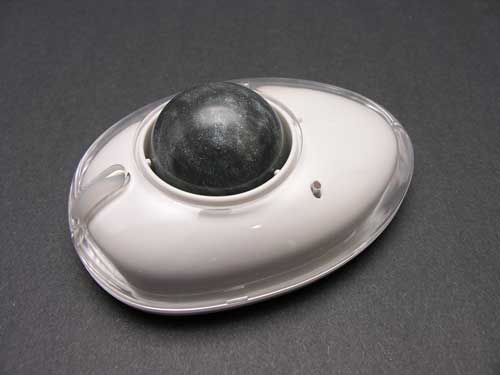
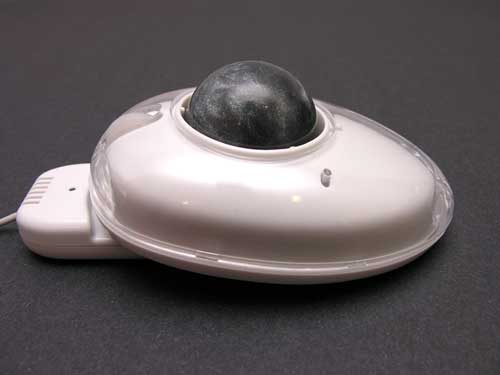
The Ball designed by Chwang Yi, should look familiar to you, if you’ve seen the MacMice Mouse BT. This trackball has the same clear plastic cover design that fits in great with my G5 iMac setup.
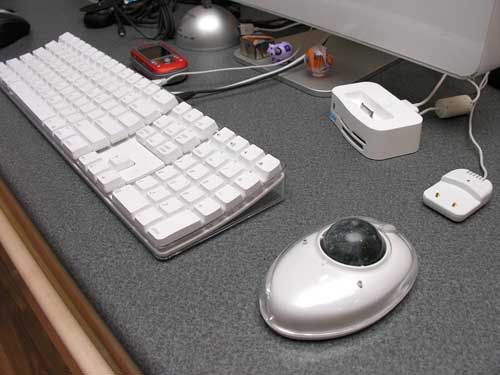
The Ball is a stationary input device. It’s designed to sit on the desktop and not be moved around like a mouse. To move the cursor, you roll the ball around. To select items, you press the left and right buttons at the front of the device. These buttons function just like typical mouse buttons. There’s even a a soft rubber scroll wheel between them.
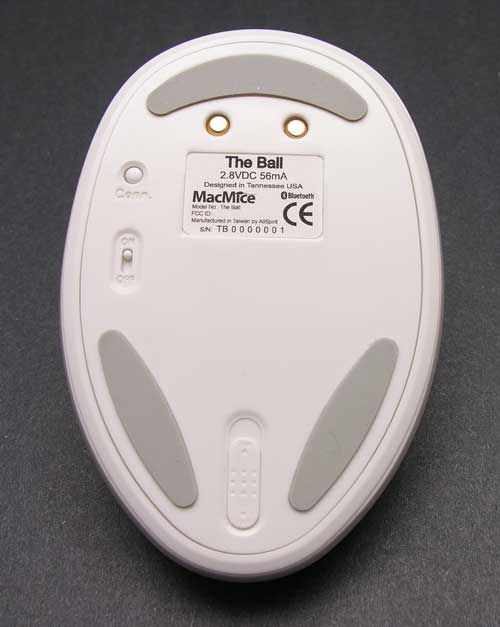
On the bottom of The Ball, there are 3 non-skid rubber pads, a connection button, on/off switch, battery charger contacts, and the battery compartment lock. Included with The Ball are 2 AAA rechargeable NiMH batteries.
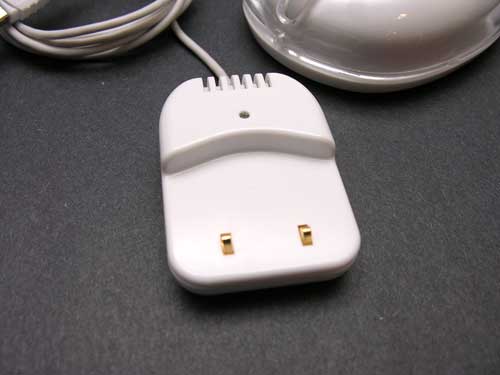
Charging is accomplished by way of the USB charging dock. This is a small module that plugs into a free USB port. It has an LED on top that blinks Blue while the trackball’s batteries are charging, and then glows steady when fully charged.
The two gold spring loaded pins protruding out of the base of the USB dock, mate with the contacts on the bottom of the trackball. To charge, you just set the trackball on the dock to make electrical contact. Easy!
Pairing the trackball with my iMac was a no brainer. I charged the batteries, flipped the power switch on the bottom to On, pressed the connect button on the bottom and told my Mac to discover the device. Simple.
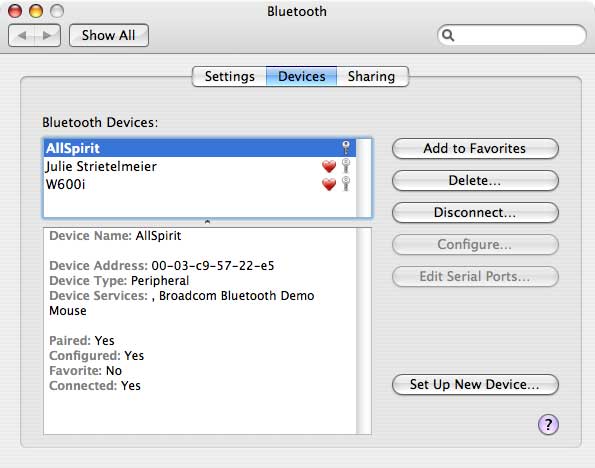
As soon as the trackball is listed as a Bluetooth device on your computer, you can start using it.
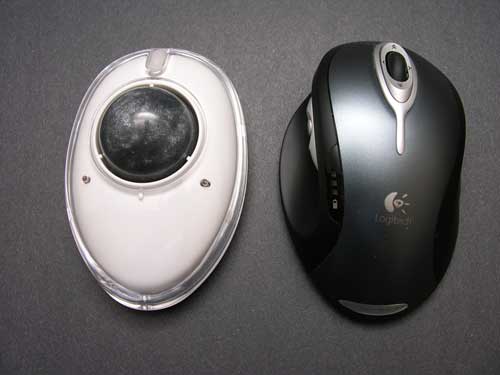
As you can see The Ball is very close in size to the MX1000 Laser mouse. The MX1000 is a large mouse though…
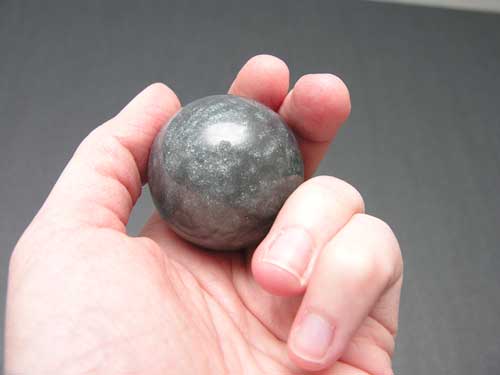
The trackball itself is about the size of a ping pong ball. It’s made of plastic and weighs approximately 1 ounce.
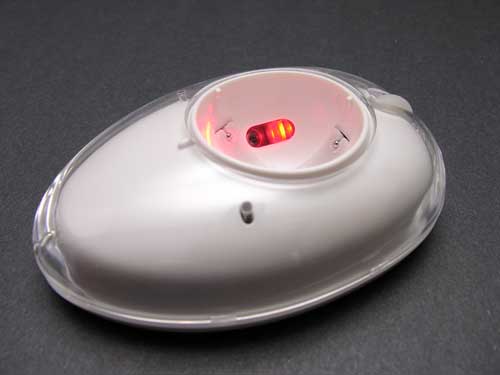
The ball snaps into the top of the device, and rotates freely in the socket.
I guess I should have mentioned at the beginning of this review that I’ve never used a trackball before. I wasn’t sure how well it would work out for me, but since I’m usually game for anything, I knew I’d give it a good try. So I unplugged my trusty MX1000 Laser mouse and put it in a drawer for a week while I tried to acclimate myself to the wonders of trackball usage.
Right from the start I had problems doing some of the everyday tasks that I have always done with my mouse. Tasks such as clicking and dragging over a line of text to select it, moving an icon around on the desktop and cropping a photo in Photoshop. I’m not saying that I couldn’t do these tasks with The Ball, but it didn’t feel as easy to do them as it does with a mouse. All of those tasks require that you hold down the left button (I won’t say that it’s a mouse button…) and then move the cursor. That’s pretty difficult to do with the trackball because it requires that you use two fingers instead of just one. You have to hold down the button with one finger and then use another finger to move the ball (cursor). When trying to do these types of tasks, I felt like my brain was trying to re-wire itself or something. ;o)
Using The Ball to scroll through pages of text, or selecting objects by navigating the cursor and clicking a button, were not difficult. It was just the tasks that required finger gymnastics that gave me trouble. I didn’t have any problems with the cursor movements when using the trackball. Although movements were just a bit faster than I’m used to, changing the tracking speed in the preferences panel fixed that issue.
After a week, I came to the opinion that most people are either a trackball person, or a mouse person. I have come to the conclusion that I’m definitely a mouse person. I gave using The Ball a good try, but I never did get over the awkward feeling that I had from using it. I’d love to hear from other people that have successfully converted from mice to trackballs.
The Ball is a quality constructed input device that has both smooth scroll wheel (not ratcheted) and smooth trackball features. It’s easy to setup and has a convenient battery charging dock. If you’re a trackball person, I can’t imagine what you could find to not like about this product.
Addendum:
I just discovered a big problem with The Ball and my iMac. If I shutdown the computer, The Ball will not be recognized after the reboot. I had to turn it off and on and hold down the connect button before I was able to use it again. I rarely shut off my computer, so this isn’t a HUGE issue to me, but it is really annoying. I didn’t find the same problem with sleep mode on the Mac.
Product Information
| Price: | 69.0 |
| Manufacturer: | Chwang Yi |
| Requirements: |
|
| Pros: |
|
| Cons: |
|

Gadgeteer Comment Policy - Please read before commenting
Post your comments on the The Ball Bluetooth Wireless Trackball review.
http://www.the-gadgeteer.com/review/the_ball_bluetooth_wireless_trackball
Just click the POST REPLY button on this page.
I’m a HUGE trackball user, but have never understood the large ball in the center of the device. I have always used a thumb trackball device. The large center ball looks like it really gets in the way. But the thumb trackballs work just like a regular mouse, but you use your thumb to move the curser around instead of your whole hand.
I have the Logitech Trackman Wheel at home, and the Cordless version at work.
Which brings me to the all important question.
Can you tell me the point of a wireless trackball?
For a device that just sits there, why can’t it be wired? The only reason that I have one at work is that that is the one they bought me. I requested the same one I had at home and when it came in, it was wireless. Oh well. I just have to keep a pack of AAs in my desk. The battery lasts about two to three months with heavy usage, so not a big deal.
johnsoax:
You may have a point about the different types of trackballs. Just looking at the Trackman Wheel makes me think it would be easier to use. But, do you do photo editing or other types of work that require fine movement of the cursor or click and move type operations?
As for the advantage of a trackball being wireless, I suppose it does allow your desktop to look less cluttered. That’s the only real benefit as far as I can see.
I don’t do a whole lot of editing, but I have. It is a little annoying as the curser may move one pixel to the right or left as you are trying to go up and down.
it is beyond me why a stationary input device (a la trackball or tablet) needs wireless.
I have a MacAlly BTMicro, and, other than the fact that I have to put a book on top of it to weigh it down and make the contacts in the charger connect, it’s great. Uses AAA batteries, comes with a rechargeable set and a cradle that plugs into a power outlet to charge.
My complaint with BT charging cradles that use USB is that, as a PowerBook user, when I’m gone, so are the USB ports. I can leave this little mouse on my desk or a hotel desk, and it’s ready to go for several days on a single charge. You ladies should grab one and review it. They were released at MacWorld ’05 last January, and I think got kinda overlooked with the Shuffle and the Mac Mini. I got several for our sales team and all but one loved them (so I took his!) 🙂
Smitty
I use a trackball mouse exclusively. I started using the trackball after three shoulder surgeries because all of the small movements with a regular mouse caused problems. It did take getting used to, but now I don’t have any problems. I do a lot of photo and graphic editing. I got around the difficulty of trying to use 2 fingers by turning the nouse nearly sideways in the palm of my had – I then use my thumb for the right-click and my index finger on the ball – my thumb can just kind of rest on the “clicker”.
I could only come up with two (more…after Julie’s “clean desk” idea) reasons to use a wireless trackball:
[LIST=1]
[*]Trackball (and laptop, I assume) users that move from meeting to meeting (ie conference room to conference room), and don’t want cords (or USB wireless dongles) hanging around to be bumped or caught on something, risking damage to the equipment (or to the person who trips over them).
[*]Dorks who use trackballs to play games, and do so on a laptop in bed (mice don’t work well on a comforter).
[/LIST]
What? Me? Using a laptop for games in bed? Uh…why would you say that? 😀
I’ve used trackballs almost exclusively with my Macs for at least 8 years. They have advantages and disadvantages.
Pros: – Stays in one place
– On some models, fine control is easier than with a mouse
– Less tiring for the hands, as one doesn’t have to grip it like a mouse; you rest your hand on the ball.
– Much easier to move large distances on the screen–you don’t have to pick it up as you do with a mouse.
– Better for some kinds of games, where fast movement to specific spots on the screen is needed (e.g., Missile Command-type games) or rapid side-to-side movement is needed (e.g., breakout-type games).
Cons: – Thumb-driven balls can easily lead to serious RSI problems (I should know, having had that happen; my right thumb still bothers me)
– No visual/tactile feedback as to where you are
– If the trackball is placed at an angle, horizontal vs vertical can be confused.
– Often not the best for first-person shooter games.
The trackball reviewed looks, to me (I’ve used at least 8 trackballs), to be one of the worst designs I’ve seen. It seems designed to be difficult to use. Trackballs should have buttons that are accessible to the user’s thumb and little finger, i.e., toward the front of the trackball, rather than at the rear. If there are buttons at the rear, like the one reviewed, those should be set for less-used functions. I had a Microsoft Trackball Explorer (no longer available, I think) with lots of buttons and a scrollwheel that was well-designed for right-handed use, but the main buttons and the scrollwheel were operated by the thumb, which could (and did) lead to RSI pain.
When I was getting ready for rotator cuff surgery on my right shoulder, I had to switch to using my left hand. I tried the Kensington Orbit, but it didn’t have enough buttons, nor did it have a scroll wheel. I ended up getting a Kensington Expert Mouse.
The Expert Mouse has a huge ball–that makes it easier to get fine control. You rest two or three fingers on the ball, leaving your thumb and little finger free to use the two closer buttons. If you need to use the top buttons, the forefinger and ringfinger are in position. The four big buttons are easily programmed with Kensington’s excellent MouseWorks software. You can get a total of six actions–each of the four buttons plus “chording”–pressing the top two or the bottom two at the same time. One neat trick that solves your problem about dragging to highlight: you can set one of the actions to “drag,” which, when used, makes the computer think that the mouse button is being held down. I can press that button and drag a file icon, highlight text, etc., without holding down any button at all. To release the drag, I just press any of the buttons.
Instead of a scroll wheel, the Expert Mouse has a scroll ring around the ball. It can be turned with any fingers–I usually use my thumb. Using MouseWorks, I have essentially reversed all the default settings for use with my left hand. My right arm is fine, now, but I got into the habit of using my left hand on the trackball and haven’t moved it over to the right, yet. (My computer desk has more room to the right of the keyboard than the left, so putting the trackball on the left freed up some working space. The trackball barely fits between the keyboard and the left edge of the desk. A mouse would require probably 4-6 times as much room.
The Expert Mouse comes with a palm rest that you can see in the picture of the wireless model.
Try the Expert Mouse–and, commentors, please don’t criticize it unless you have tried it for at least several hours. I’ve read some hilarious “critiques” of the Expert Mouse (and other trackballs) that were obviously written by someone who merely looked at the device or tried it for 2 minutes and decided that, since it was different from his/her mouse, it must be worse.
I was a web producer about 10 years ago, and developed bad pains in my wrist, elbow and fingers, to the extent I was seriously wondering if I could continue working with computers. Switching to a trackball completely cleared any problems within a couple of days, and I’ve been a firm fan ever since. I’ve used it for graphics, music-mixing and video editing with no problems at all, finding that the palm of my hand is accurate on the ball, and that I get much less shake using my thumb on the button than I used to with my finger on the mouse.
The only thing I begrudge about any input device is the IO slot it takes up; the thing that disappoints me about the Ball (sadly, it still seems to be the only Bluetooth trackball on the market – would appreciate an update from anyone if I’m wrong here) is that it STILL seems to take up a USB port for the charger. I use a Libretto u100 which only has 2 USB’s to start with. Guess I’m waiting for the world to catch up with me, as ever ;-).
I’m on the move a lot, and frankly the more I can cut down on the spaghetti in my laptop bag the better – the biggest reason for being as unwired as possible. Plus I live on a boat which is all 12Vdc, so also begrudge anything that needs charging.
Which is a shame, cos I was all set to switch to the Ball. Guess I’m stuck with my trusty, battered old USB Kensington Orbit – if I can get it back off my buddy, who I showed it to, and who’s now a convert.
There are lots (dozens) of USB chargers for AC & DC–you don’t have to plug it into a computer. Some of these are suitable for charging an iPod, PDA, cell phone, even some digital cameras. My Bluetake BT400GX Bluetooth headset will also charge by USB. Griffin has the PowerJolt (DC only); PowerBlock (AC only); and PowerDuo (Separate AC & DC–essentially the PowerJolt & PowerBlock).
Boxwave has a slew of devices. The neatest is the VersaCharger Pro, which combines AC and DC chargers into one unit. The VersaCharger Pro can charge the USB iPods. (The original VersaCharger could not.) Boxwave also sells their Mini Sync retractable cables. I have such cables for: iPod; Palm TX; Samsung cell phone; mini-USB; USB extension, regular USB A-B; FireWire 6 pin to 6 pin; FireWire 6 pin to 4 pin for digital camcorder; Ethernet; telephone; iPod AV output; camcorder AV output; AV (3 RCA plugs on each end); and more.
You can find a lot more of these by a variety of manufacturers. Check any retail store that sells iPods, for example. You want a charger that has a regular USB outlet, not one with the iPod dock connector. You can go to Amazon.com and search on “USB charger”–you’ll get a lot of hits. Check Circuit City, Best Buy, CompUSA, etc., as well.
You don’t need to have the charger plugged in all the time–just when you need to recharge the trackball’s batteries. You could leave it charging overnight, for example, using an AC or DC charger.
There are even battery packs by MacAlly and others that can be charged via a USB charger, then provide extra power for USB devices. I use that MacAlly battery pack with my iPod 5G and Belkin’s TuneTalk , the only voice recorder for the current iPod that I’ve found that has a power pass-through.
As for your concern about taking up an “IO port” (a USB port), if you used this Bluetooth trackball, you’d free up the USB port you now use for the Orbit. If you need to connect more devices, get an USB hub. There are nice 3- and 4-port portable USB 2.0 hubs that are quite small. Some even have external AC power supplies to provide power to USB devices. Without an external power supply, you can use many devices that are not “bus-powered,” like printers, and those that are low-power, like keyboards, gamepads, etc.
Do you begrudge the Libretto u100, as it most definitely requires charging? It’s a bit difficult to use electronic devices without some source of electrical power.
Reason for wireless stationary:
Living room. When you are across the room using TV for a computer and you have only a couch or tray to set the mouse on.
No cord across the room, no space needed for pointing movements.
Why a Bluetooth Trackball ?
When your Home Theater HDTV is your Mac Mini’s monitor and is located in your living room with no desk to use a mouse on, a trackball in your lap works wonders when you sit in an overstuffed recliner reading e-mail or editing audio tracks, videos and photographs. And with no cabling to deal with as well. Even in troubled times life can be sweet !
I am disabled and use a logitech marble trackball mouse with a mouth stick. If I didn’t have the trackball, I wouldn’t be able to use a computer.
The reason I use a wireless trackball is that a shoulder injury forced me to keep my arm close to my side. So I attached the mouse to the arm of my chair. Now my shoulder is better, but I found I really like having my mouse at my fingertips no matter which way I turn.
A friend of mine is a quadriplegic, he has hand movement but not enough to use a normal mouse. the logitech trackball has saved the day. Now that he’s got a mini laptop though, we need to get a bluetooth trackball that will attach to the laptop somehow, sticking it over the trackpad would be perfect as the trackpad relies on heat and he doesn’t use his fingers, he has rubber splints for accuracy. I gather his situation is not hugely common so there isn’t much demand. I can’t find any mouse for this through extensive googling.
In our case, a wireless (Bluetooth) trackball would be useful for use with a Bluetooth-enabled laptop. My wife sits in a chair with the laptop (on her lap), and I want a trackball to sit on the arm of the chair. Anytime she gets up, we don’t want her having to dodge wires (associated with a wired version), so wireless makes sense. I’ve already ordered her a Bluetooth left-handed “Frogpad,” the one-handed keyboard. The idea is for her to text with her left hand, and trackball with her right. This allows her to keep her hands on the arm rests, in a position which isn’t causing her more arm strain (her arm is going numb as a result of touchpad and keyboard usage).
As nobody is (currently) making a Bluetooth trackball, I’m thinking about getting a regular Logitech trackball, gutting the electronics, and grafting in the workings of a Bluetooth optical mouse. Rotating the optical sensor 180 degrees (along two different axis) would allow the trackball marble to effectively act as the “surface” which the mouse would ordinarily “see” (rotating the sensor 180 so it faces up instead of down) and move in the correct direction (rotating the sensor 180 so it faces back instead of front). The battery compartment of the trackball should be suitable for the power needs of the mouse electronics. While the buttons shouldn’t pose any real problem, hopefully it won’t be difficult to get the scroll wheel connected up as well (want to use the trackball’s native wheel). Would rather just plunk down cash at the computer store for an off-the-rack solution, but Logitech et all are remiss in creating a Bluetooth trackball (go figure).
Hello, I use trackballs only. I pulled muscles in my shoulder/neck while “helping” people through technical difficulties (holding the phone with my shoulder and mousing around). The solution was to get a headset and a trackball. After a very short adjustment, I was just fine with the trackball. In fact, I now find the mouse clunky. I turn up the speed for my old marble mouse in the System Prefs and my trackball flies across my 24 inch Mac screen at work. I find it much easier to hold my thumb down and drag with my forefinger to drag/select in Photoshop/Illustrator. I now can easily use the pen tool and perform all kinds of complicated tasks. So, I just think it, like most things in life, takes some adjustment. Oh, and the point of getting a wireless trackball is….no wires!
I’ve never understood why reviewers never understand the
ergonomics of the wireless trackball: keep it as far away from the
desk as possible except to charge it.
Sit back away from your screen with the wireless trackball in
your left hand with your left thumb near the left button and
your left index finger near the right button and your right hand
hovered over the ball . You can use your left hand to click
buttons and roll the scroll wheel or you can use the fingers on
your right hand to “reach over” and click the buttons when
they’re not being used to help turn the ball. You use the left
hand’s fingers to hold down the buttons while tracking, not the
right hand’s.
I have NEVER experienced any of the drawbacks that ANY
reviewer has had with the ergonomics of a wireless trackball.
In addition, when I’m drawing in AutoCad, I NEVER have to
play that “backpaddle and slap it back down” game that has to
be used with ANY mouse, wired or not. The only way to
use a mouse as comfortably as a wireless trackball in AutoCad
is to have a 4 foot by 8 foot mouse pad.
Wow! This is exactly what I’m looking for.
Where can I get one?
They don’t seem to be available anywhere anymore.
@tung Unfortunately the company appears to have gone out of business.
Trackball lover here.
I was initially resentful of trackballs because of those hideous little ones in the ’90s that used to be in laptops and that had terrible control.
But switched – and I can’t even remember why – about 6 years ago. Did take a break in 2005 but found I was getting RSI-type problems (with Apple’s Mighty Mouse). So went back to trackball. I use a Logitech Marble Mouse (I believe that’s what it’s called, but it’s no longer made). It has a centred ball, and buttons either side that you operate with your thumb for left, and middle finger for the right.
Three years ago I had a career change and and studied and became a graphic designer.
I thought using Photoshop and Illustrator and all the precision control required would make me have to switch back to a mouse, but no, found I could do both quite well with a trackball.
A good trackball, like Logitech makes, is a very capable pointing device. I suspect the one you reviewed here wasn’t up to the mark. Try a Logitech one.
Like other people above who use one with their TV based computer, I hope the lounge room will bring about a resurgence in the trackball.
the problem you’re having with functions like dragging items is not because you’re using a trackball, but because you’re using a trackball with poorly-placed buttons. the buttons need to be placed such that you can press them with your thumb, rather than having to use a finger; your fingers need to remain free to roll the ball. Kensington knows how to build a trackball; they make their Expert Mouse (which is actually not a mouse at all) with a big, weighty ball – closer in size to a tennis ball than a ping-pong ball – that gives a great feel and lets you “throw” the cursor from place to place by giving the ball a good spin and letting the resulting momentum carry the cursor the rest of the way; definitely handy when you want to get from one end of a multiple-monitor setup to the other in a hurry.
unfortunately, they don’t make a real bluetooth trackball; their only bluetooth “trackball” is a mouse with a little tiny ball on top, which can’t compare to the substantial feel or give nearly the amount of control you get with their real trackballs.
i’m hoping one day somebody’s going to produce a bluetooth trackball with the substance and superior design of Kensington’s Expert Mouse…but a lot of us have been wanting something like that for a long time and it hasn’t surfaced yet. we’ll see…
Hello, I recently purchased one of these (NM); charges fine and appears on my bluetooth list but says the code is a mismatch. I honestly am out of options for places that could help me troubleshoot. I’m currently building a Y2K work station and this clear mouse would be a great asset.
Please any help would go a long way. Newbie gadgeteer here.